Downloading Daily Archive Report
Introduction
This topic outlines the step-by-step procedure to download the daily archive report in the XY Stylist application, ensuring seamless access to compliance and operational records.
Steps to Download the Daily Archive Report
- Sign in to XY Stylist
-
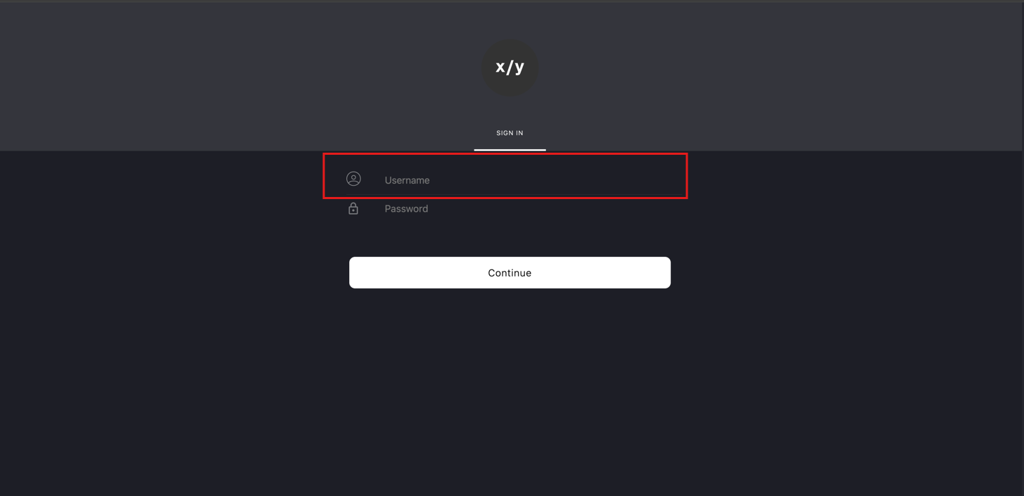
Enter the Auditor's email address (for example, auditor@xystore.com) in the Username field.
-
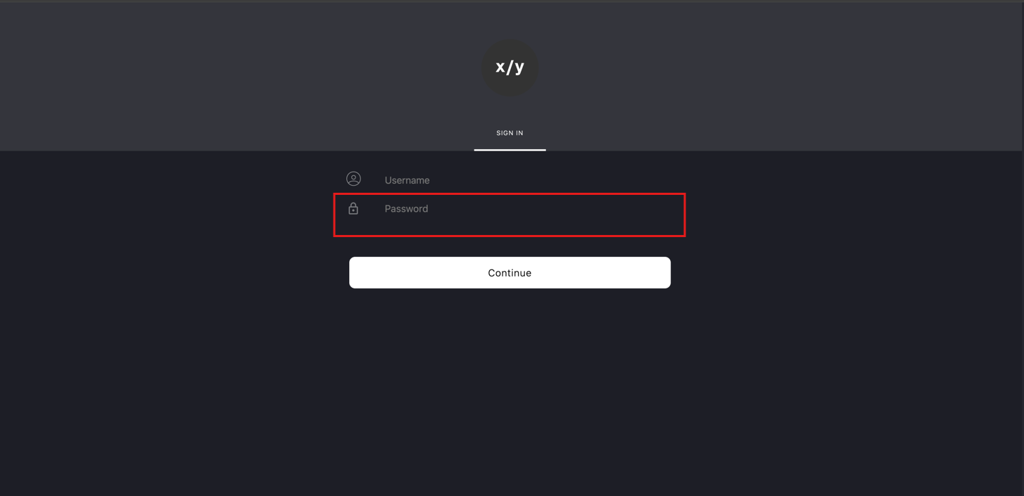
Enter the corresponding password in the Password field.
-
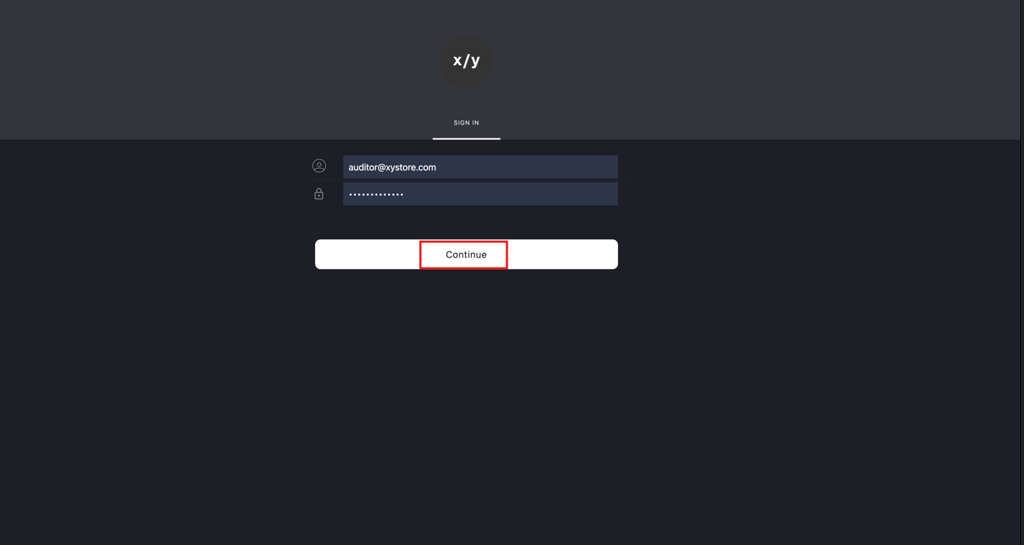
Click Continue to proceed.
-
- Access the Archive Section
-
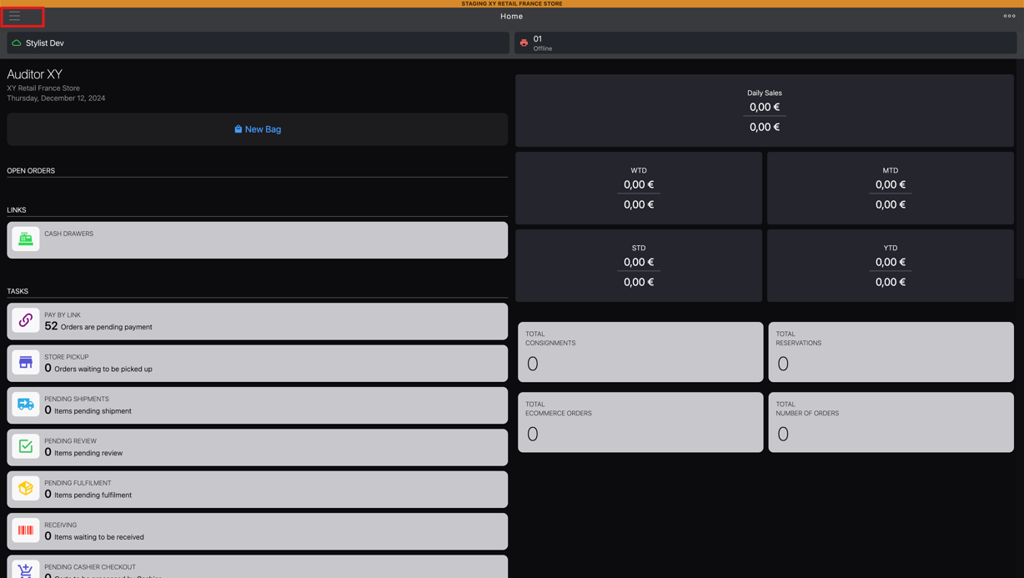
Click the burger menu (☰) in the top-left corner.
-
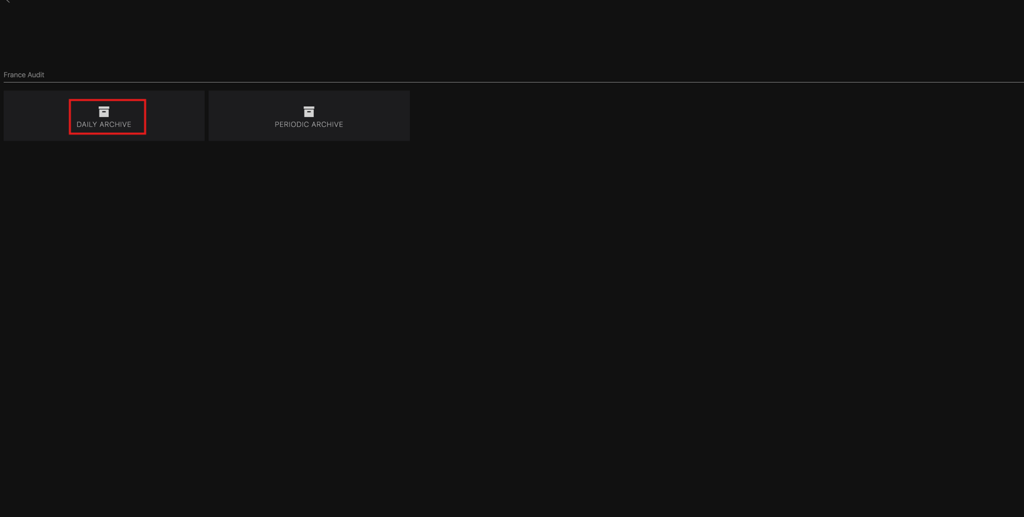
Select DAILY ARCHIVE from the menu to open the archive page.
-
- Filter the Reports
-
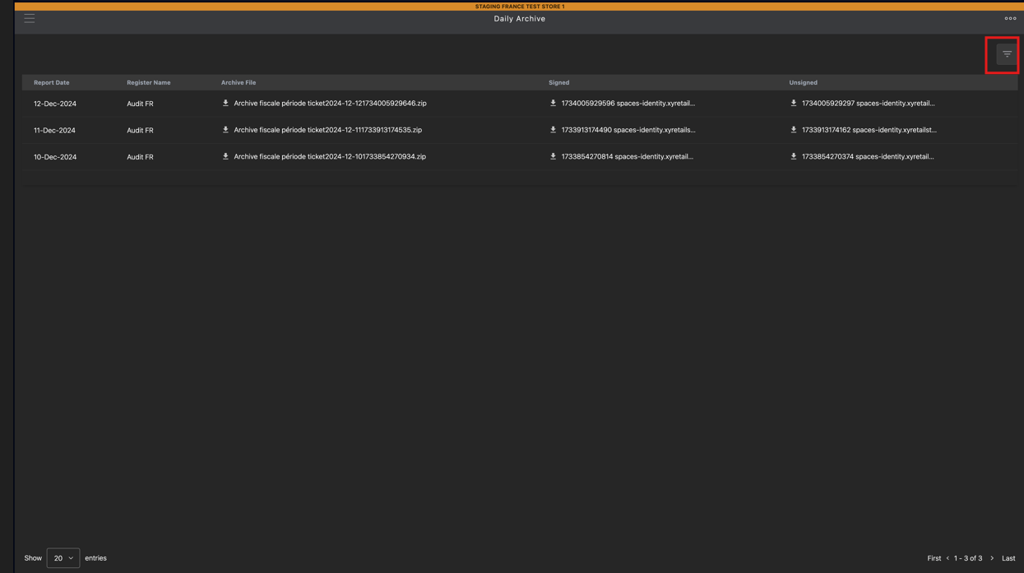
Click the Filter icon to refine the archive list.
-
Choose one of the following filter options:
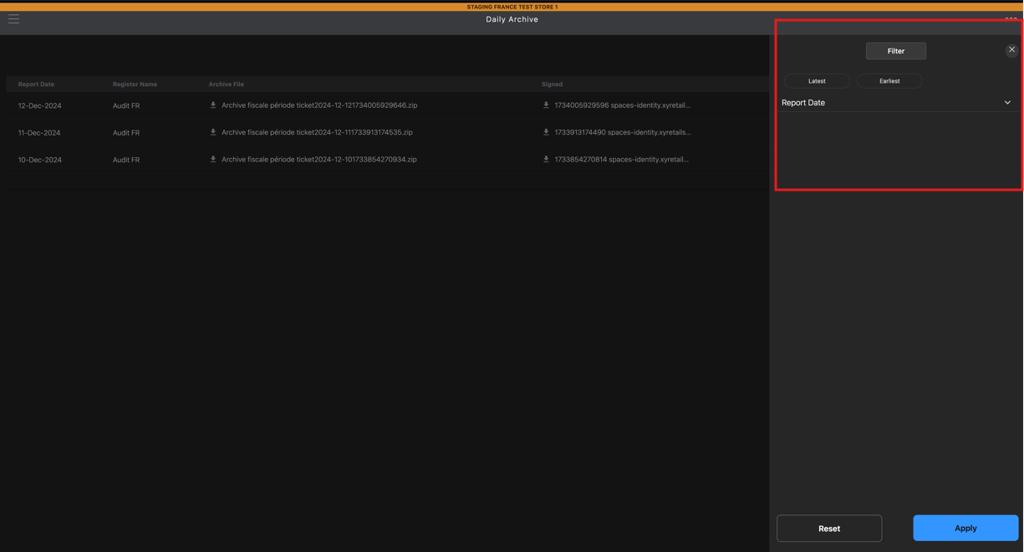
- Latest: View reports from the most recent date to the oldest.
- Earliest: View reports from the oldest date to the most recent.
- Report Date: Specify a custom date range to view reports for the selected period.
-
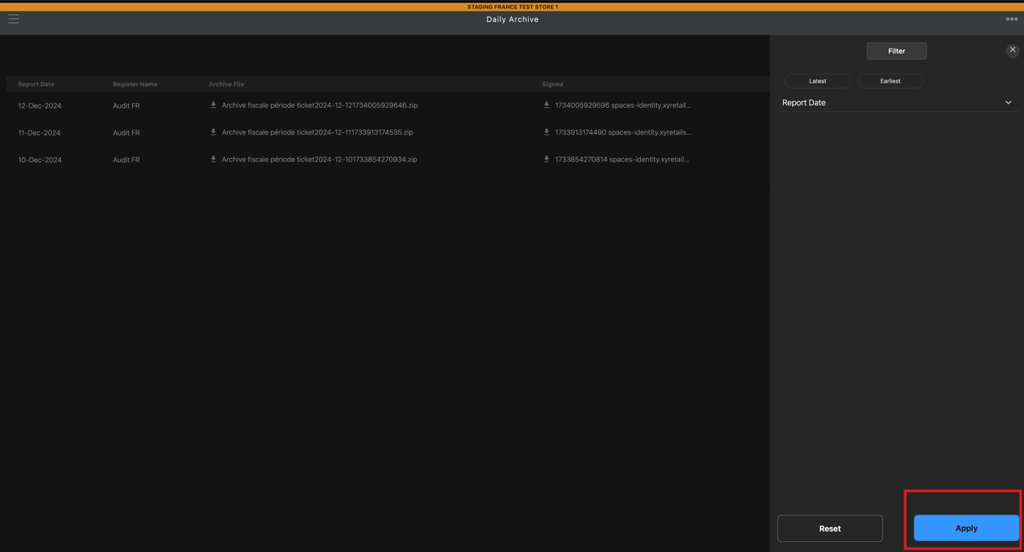
Click Apply to apply the selected filter.
-
- Locate the Desired Report
-
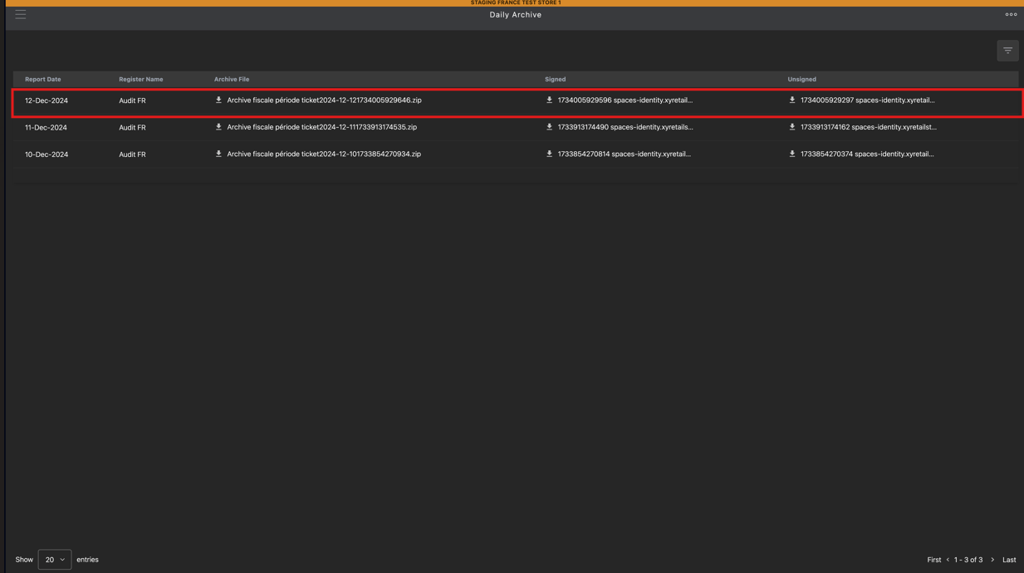
Find the desired report row based on the selected date in the Respective Report Date column.
-
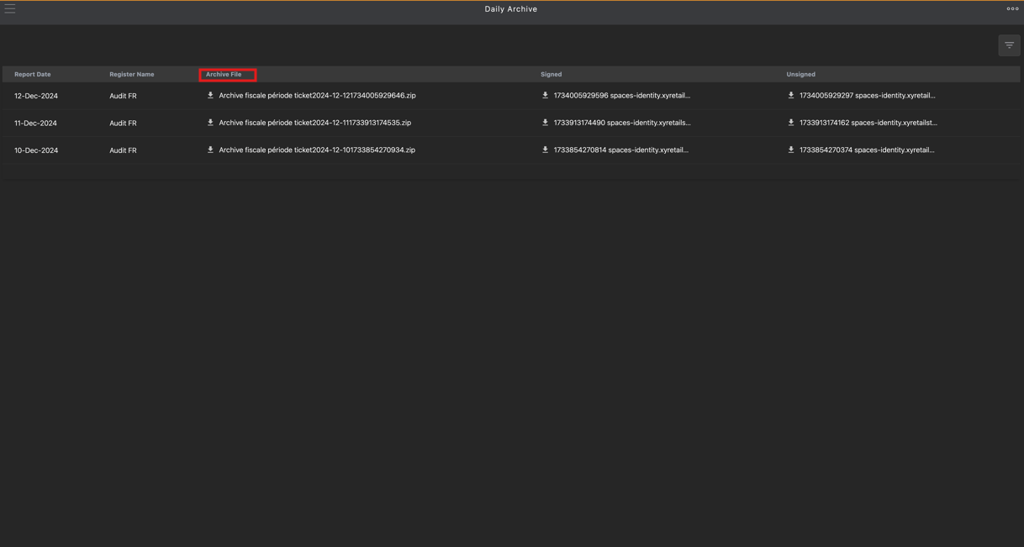
Navigate to the Archive File column in the same row.
-
- Download the Report
-
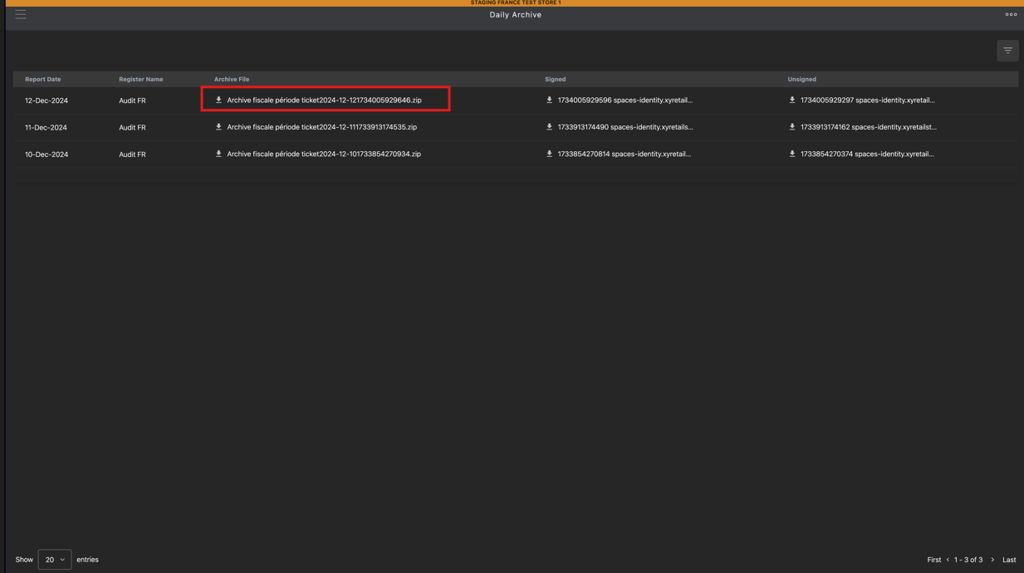
Click the file in the Archive File column to download the corresponding daily archive report for the specific date.
-
Note
Ensure the correct credentials are used for access, and verify the selected filters to retrieve the desired reports accurately. This procedure ensures easy and compliant access to daily archive records for auditing and operational review.