Accessing Fiscal Register Report
Introduction
This topic explains the step-by-step process for accessing fiscal register reports in the XY Stylist application. The reports offer detailed data on store events, invoices, and receipts across various time frames, including the current day, daily, monthly, yearly, and lifetime, supporting compliance and review processes.
Steps to Access Fiscal Register Report
-
Sign in to XY Stylist
-
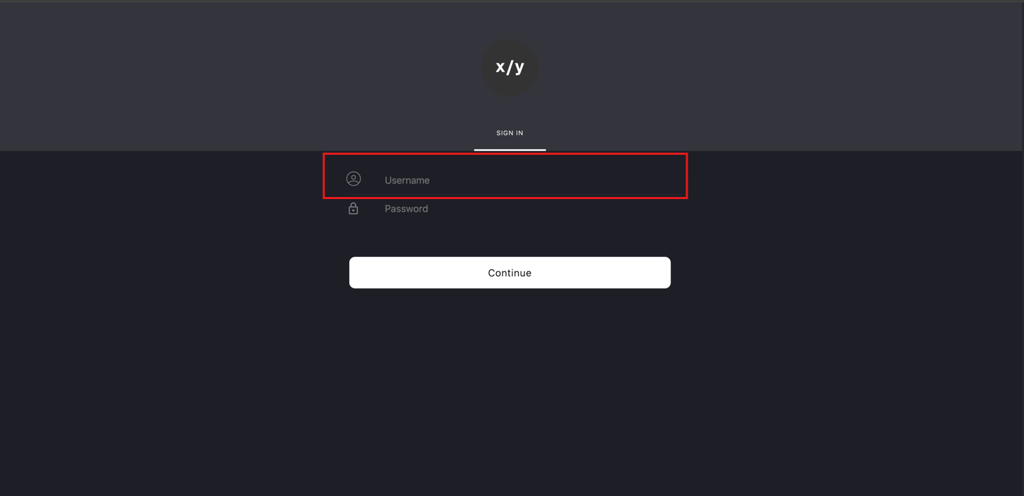
Enter the Auditor's email address (for example, auditor@xystore.com) in the Username field.
-
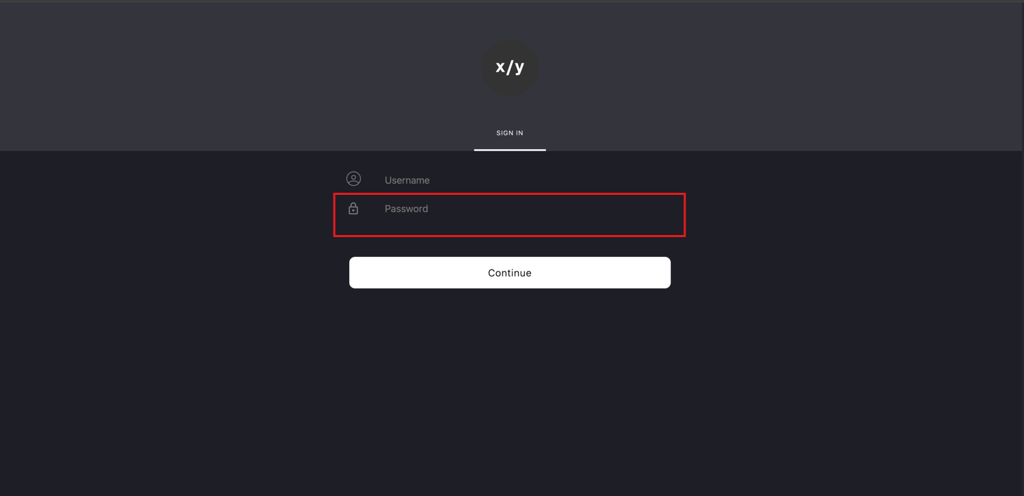
Enter the corresponding password in the Password field.
-
Click Continue to proceed.
-
-
Navigate to the FISCAL REGISTER REPORT
-
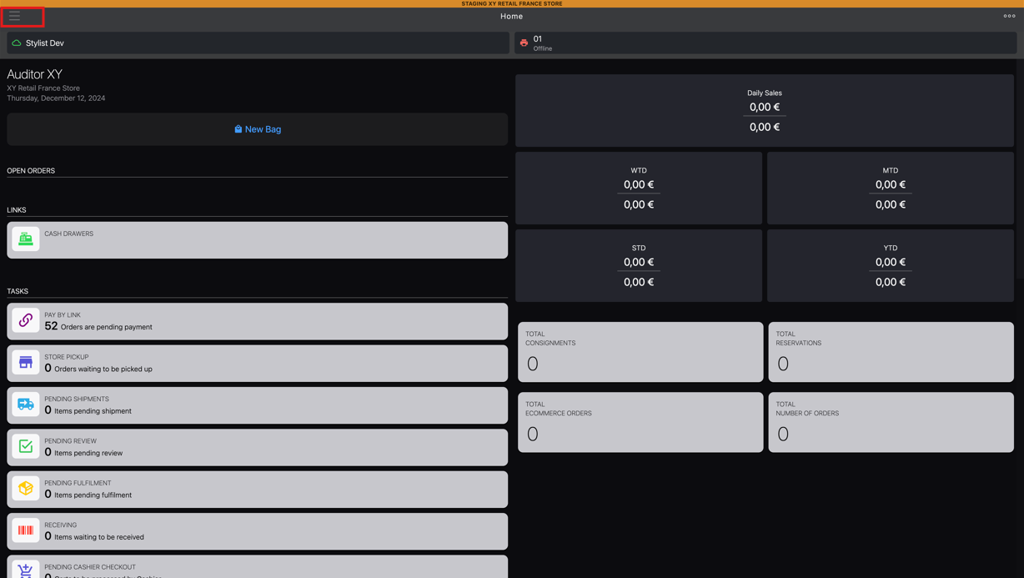
Click the burger menu (☰) located in the upper left corner.
-
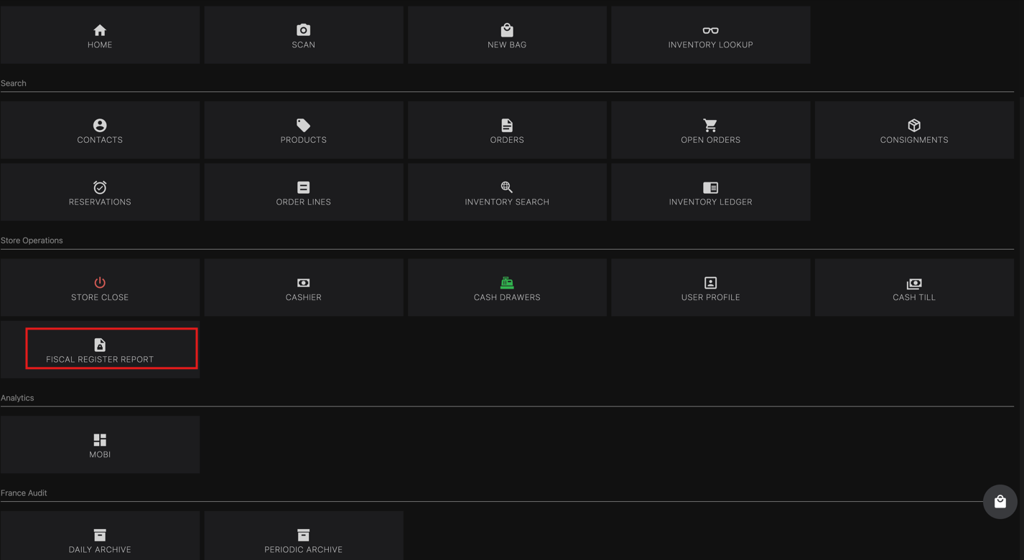
Select FISCAL REGISTER REPORT from the menu to access the FISCAL REGISTER Reports list.
-
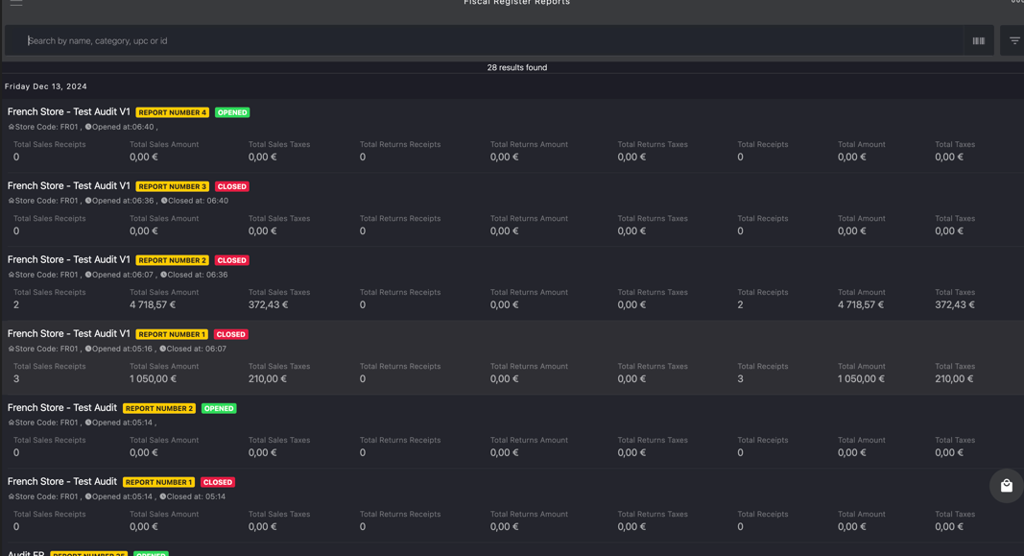
Click the specific report from the list.
-
-
Fiscal Register Report Overview
-
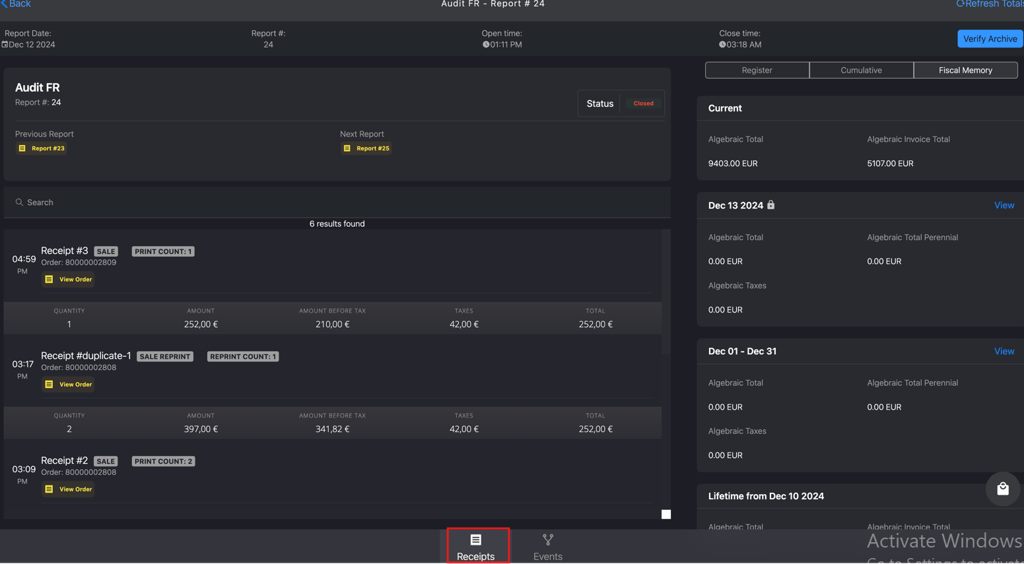
Click Receipts in the bottom bar to view the list of receipts generated for each order or return processed during the archived period.
-
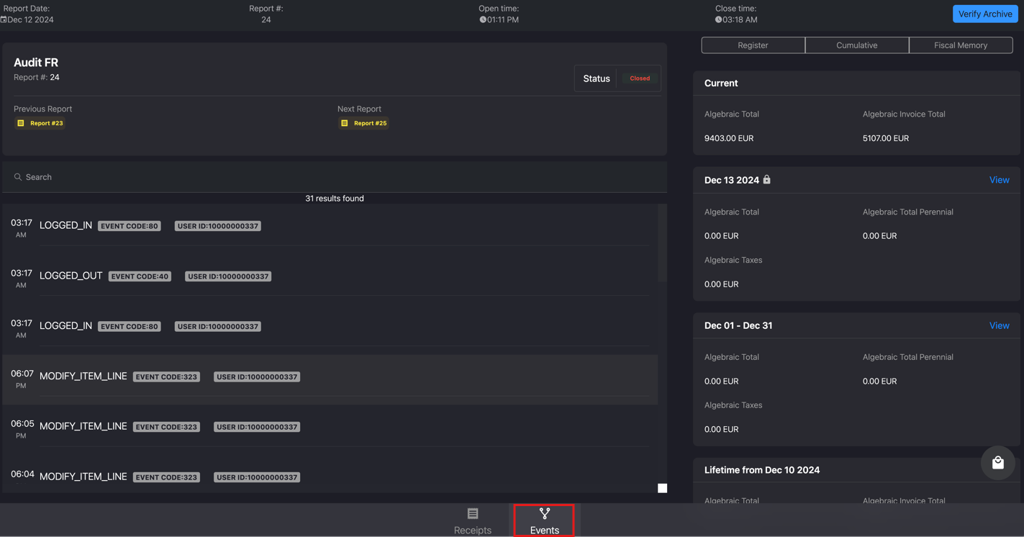
Click Events in the bottom bar to access the types of events logged, such as fiscal events or operational actions.
-
-
Fiscal Memory
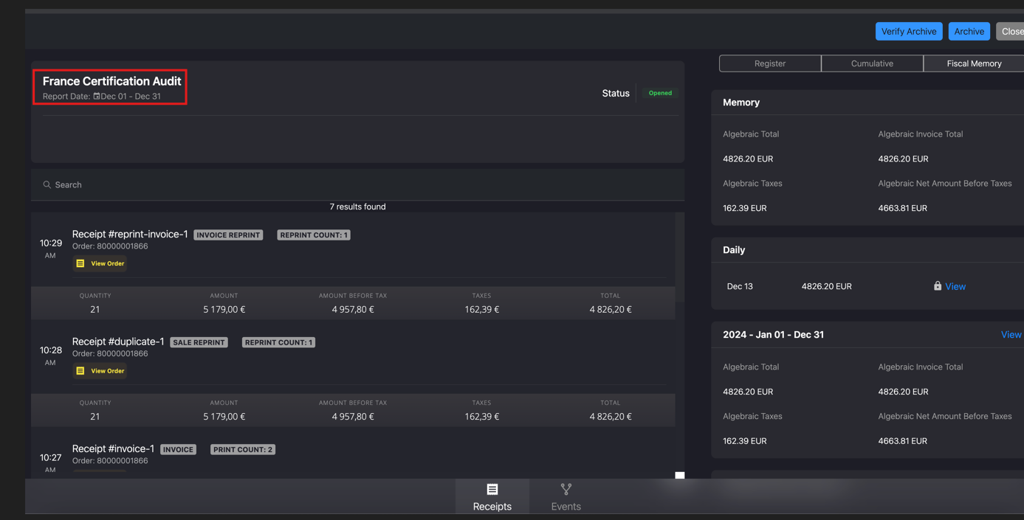
The Fiscal Memory section displays summarized fiscal data for specific time frames.
- Current: The current report consolidates real-time fiscal data for transactions happening on the current business day.
- Daily: The daily report consolidates the fiscal data that occurred in a single business day.
- Monthly: The monthly report consolidates the fiscal data that occurred for all days in a specific month.
- Yearly: The yearly report consolidates all fiscal transactions for an entire calendar or fiscal year.
- Lifetime: The lifetime report consolidates all fiscal activity from the date the fiscal register started operation up to the present.
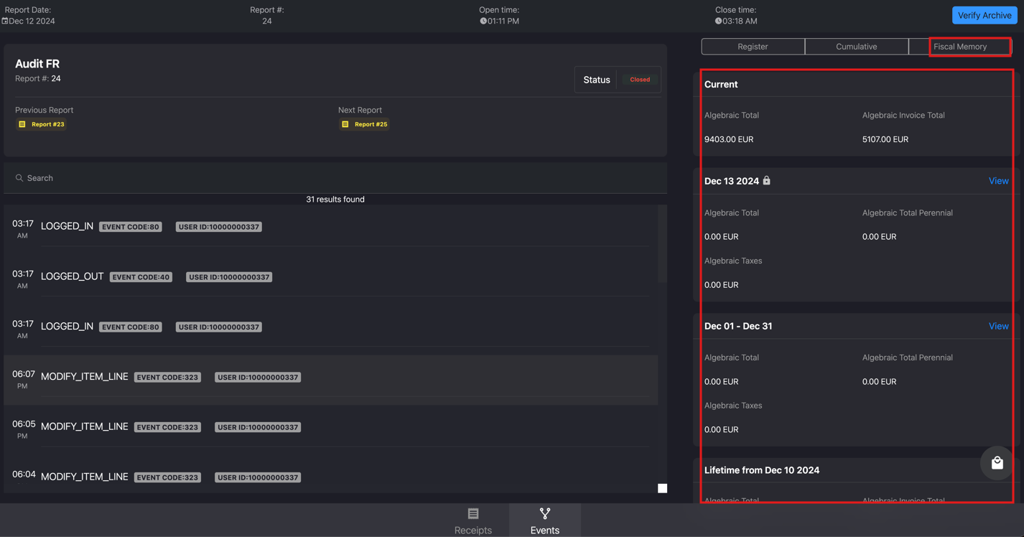
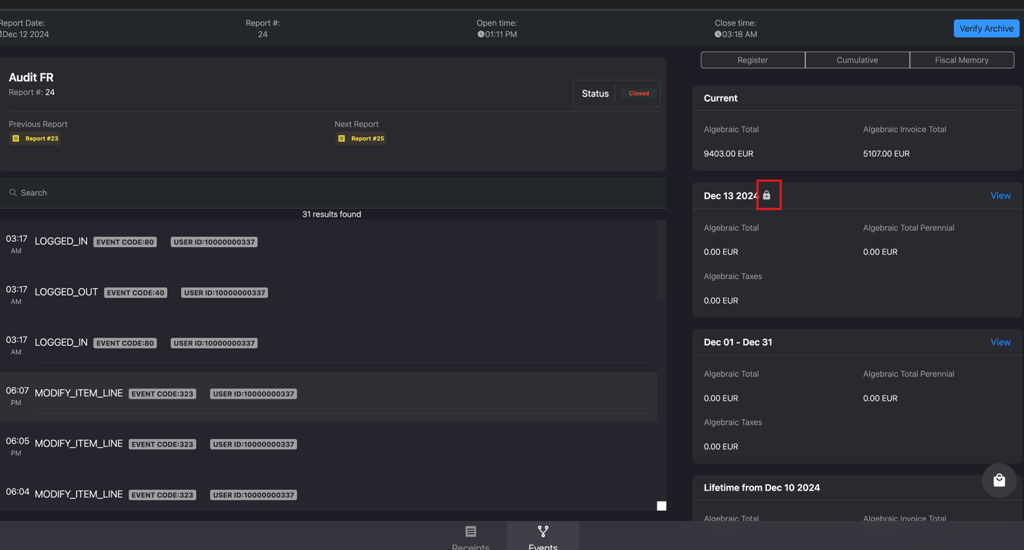
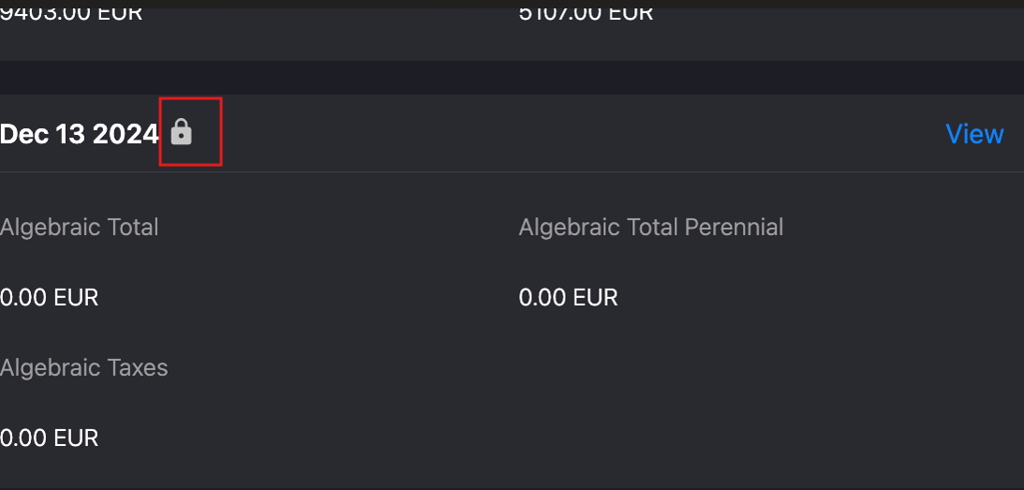
- The fiscal memory lock icon indicates that the fiscal data for that period has been finalized and cannot be modified.
-
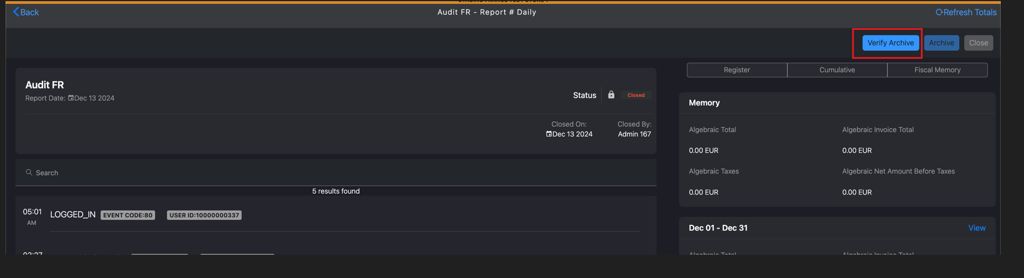
Verify Archive
The Verify Archive button is used to authenticate archived fiscal reports.
-
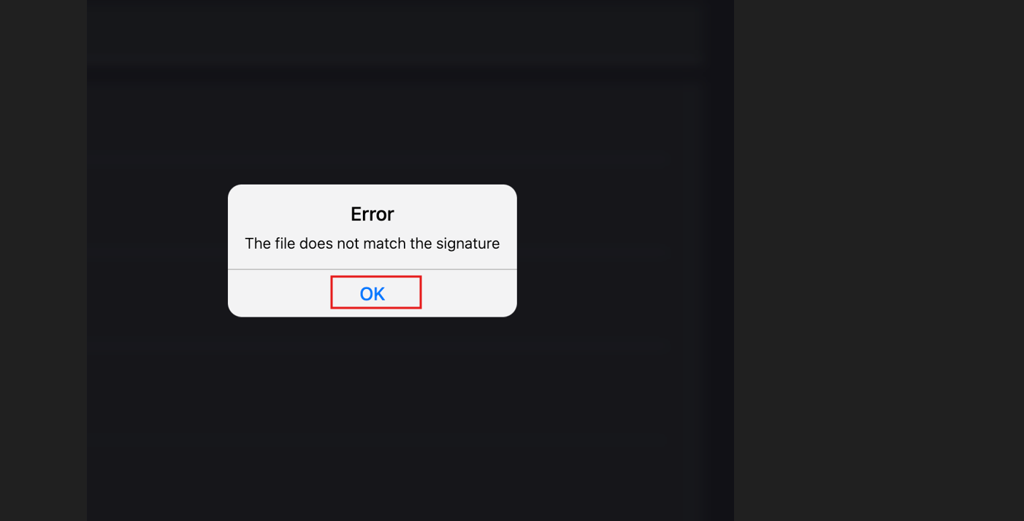
If the digital signature does not match, an Error pop-up will be displayed.
-
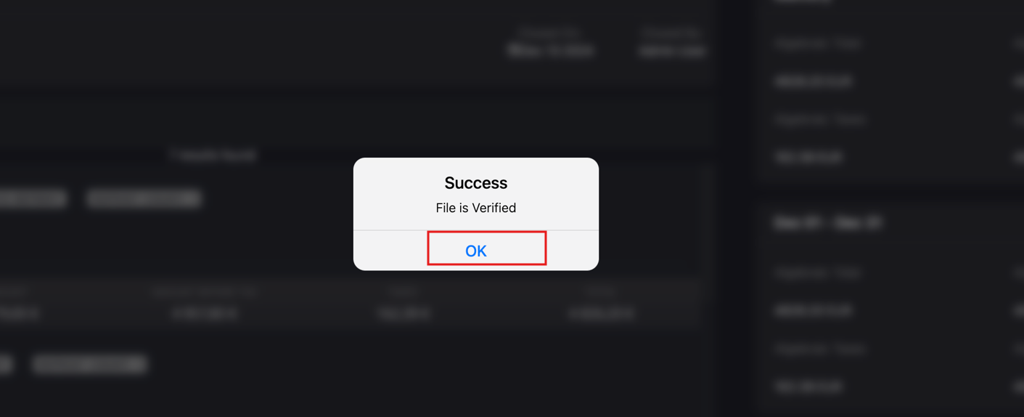
If the uploaded file is correct, a Success pop-up will be displayed stating "File is Verified".
-
-
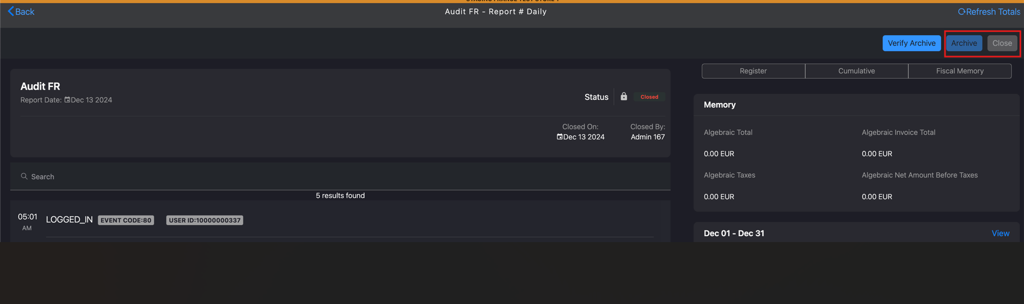
Archive and Close
The Archive and Close buttons are disabled when the memory is already closed to prevent further changes or actions on finalized fiscal data.
-
Warning Pop-up
When you click the Close button of any memory, a warning pop-up will appear, notifying the user about the restrictions that will be applied:
- Day Memory: Users will not be able to place any transactions until the next day.
- Month Memory: Users will not be able to place any transactions until the start of the next month.
- Year Memory: Users will not be able to place any transactions until the next year.
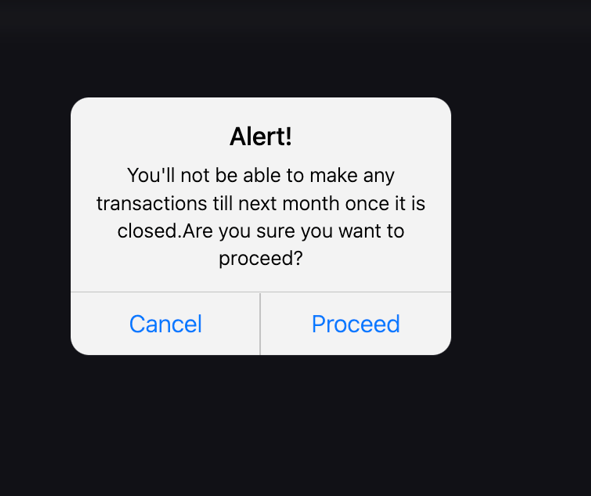
Note: This ensures that no transactions can occur during closed periods, maintaining the integrity of the fiscal data and ensuring proper compliance for each period.
-
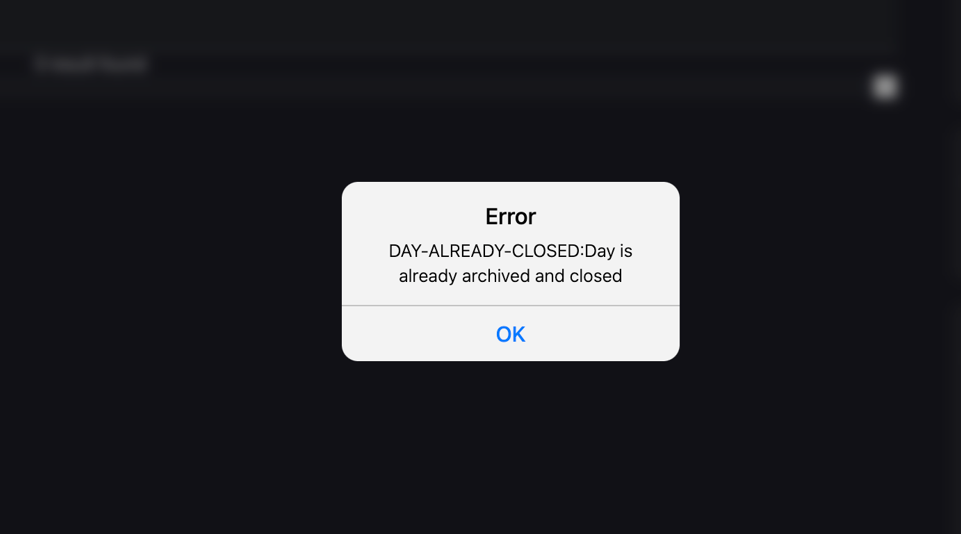
When you click the Close button and the day is already archived and closed, an Error pop-up will be displayed, as no further actions can be performed once the day is finalized.