Sign in with Microsoft SSO
Introduction
This topic provides you a comprehensive overview of the Microsoft SSO sign in process for your Stylist accounts. Microsoft SSO facilitates secure access without the requirement for manual password entry.
Steps to Stylist Sign in with Microsoft SSO
-
Navigate to XY Stylist sign in page.
-
Enter your Username.

-
Click Continue.

-
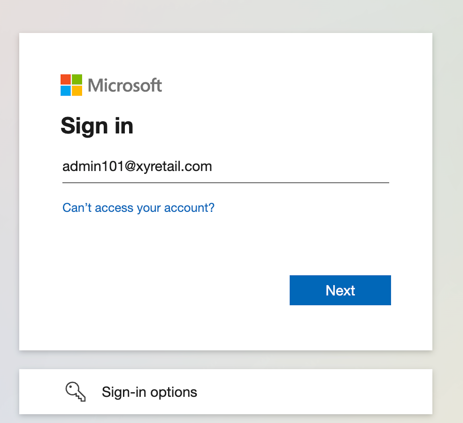
You are redirected to Microsoft SSO page.
-
Select one of the following authentication methods:
a. OTP: You can enter a one-time password received via SMS, email, or an authenticator app such as Microsoft Authenticator.b. Face Recognition: You can authenticate using facial biometrics for enhanced security.c. Phone-based Authentication: You can verify your identity using a code received via phone call or text message.d. Security key: Microsoft SSO supports the use of physical security keys, such as USB or NFC tokens, for additional security measures. -
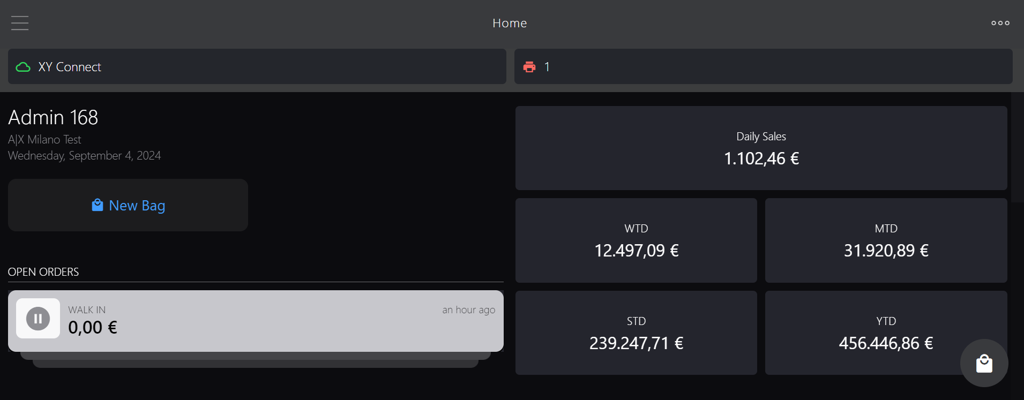
After successful authentication, you will be directed to Stylist homepage.
📝 If you experience an SSO sign-in issue, promptly reach out to Microsoft support for assistance.