Adding Services
Introduction
This topic explains the procedure of adding various services, such as shipping, gift cards, open deposits, and alterations, to a sales order.
Steps to Add a Service to a Sales Order
-
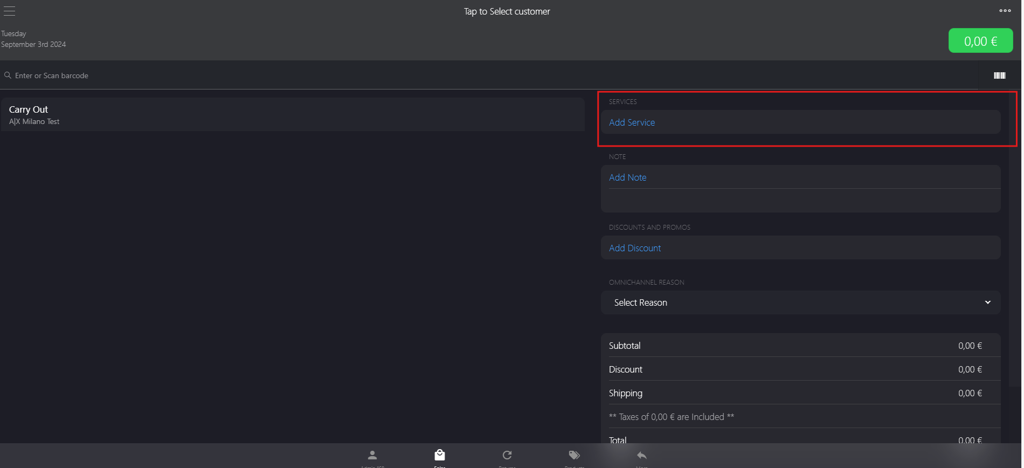
In the SERVICES section, click Add Service.
-
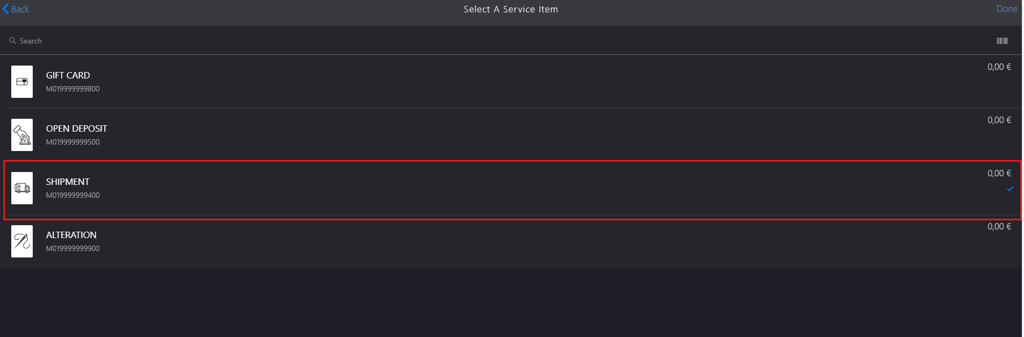
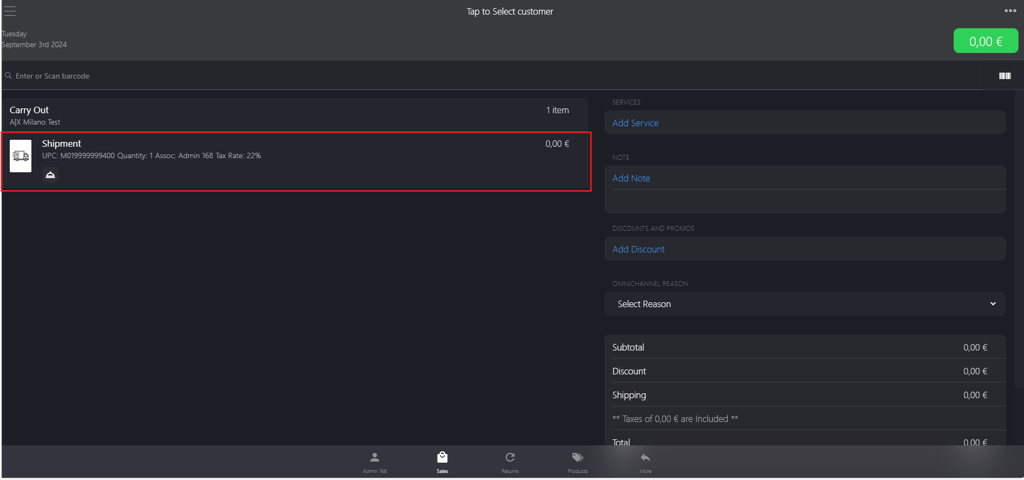
Select an appropriate service from the service list on the Select A service Item page, for example, shipment.
-
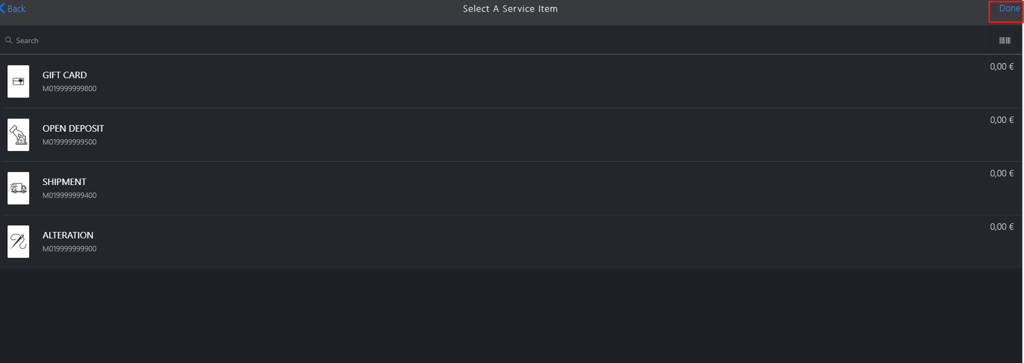
Click Done to apply the service.
-
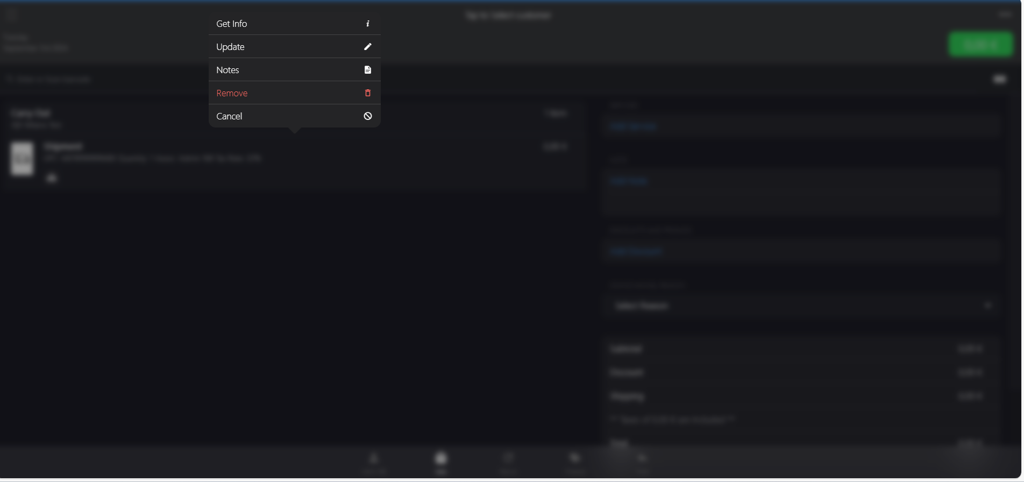
Click the applied service on the Tap to Select customer page.
-
Select Remove from the popup menu to remove the applied service.