Applying Tax-Free to Sales Order with Planet
Introduction
This topic explains how to apply tax-free after the payment has been processed successfully, and a receipt has been generated, provided the purchase meets the eligibility criteria.
Planet Planet allows store staff to generate a tax-free invoice for customers directly from the XY POS system plugin through the Planet interface. The tax-free feature is automatically enabled after the payment has been processed successfully and a receipt is generated. This feature facilitates efficient and transparent post-transaction communication, enhancing customer satisfaction.
Steps to Apply Panet Tax-Free
-
Click Tax Free to access the Planet page.
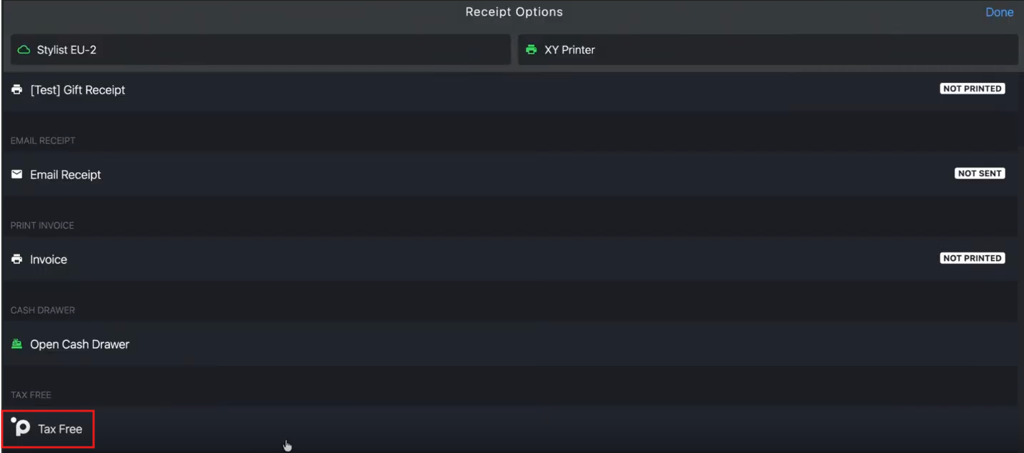
Note: The receipt must be printed before generating a tax-free invoice. The system displays an alert if this step is not completed.
-
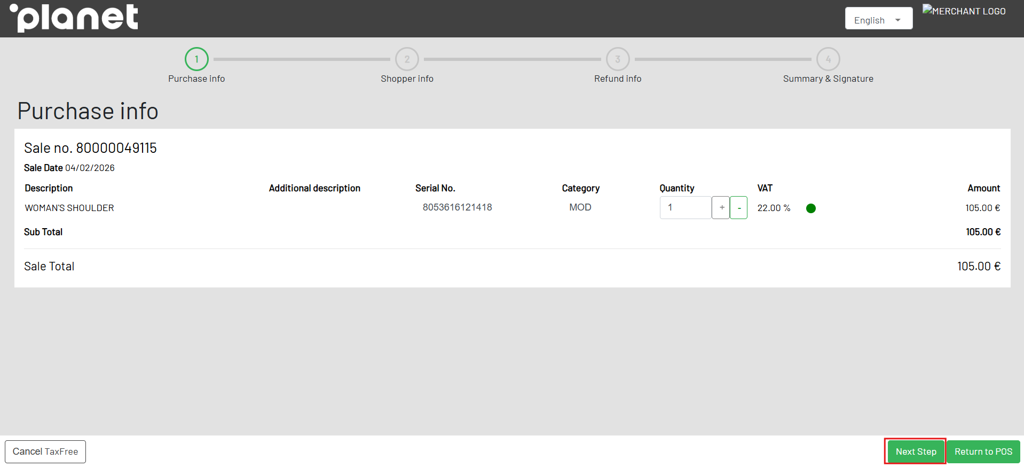
Review the purchase details displayed on the Purchase Info page and click Next Step.
-
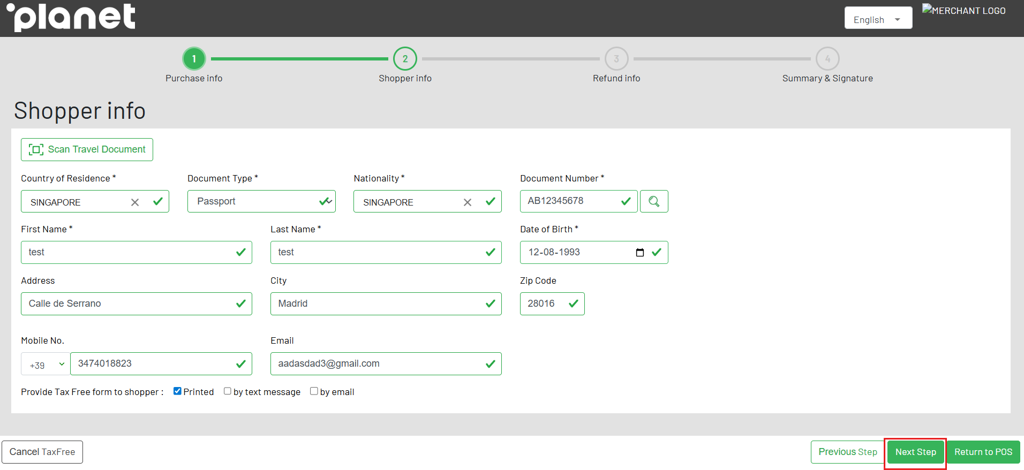
Review the prefilled customer information or enter passport, personal, and contact details as required, and click Next Step.
-
On the Refund Info screen, select the preferred refund method from the dropdown, and click Next Step:
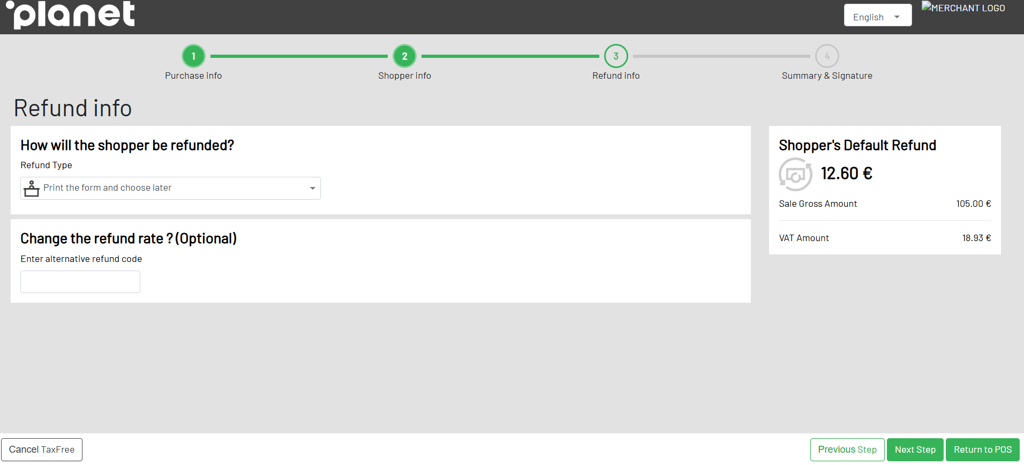
- Credit Card
- Digital Wallet
- Cash
- Print the form and choose later
-
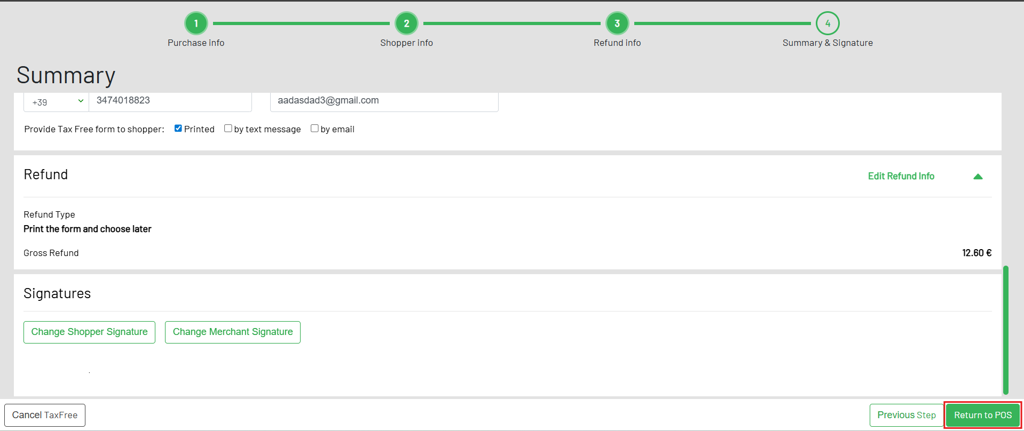
Review the summary details, add the shopper and merchant signatures in the Signature section, then click Return to POS to issue the tax-free invoice.
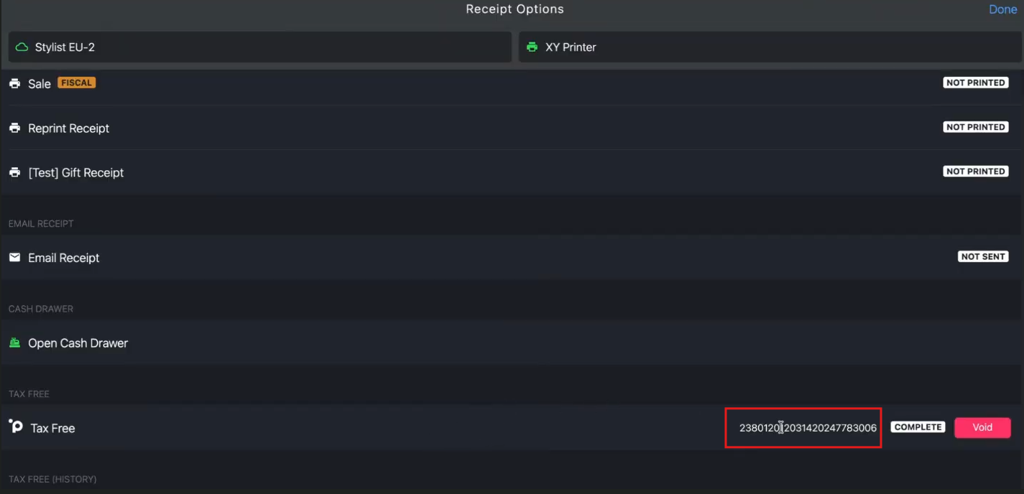
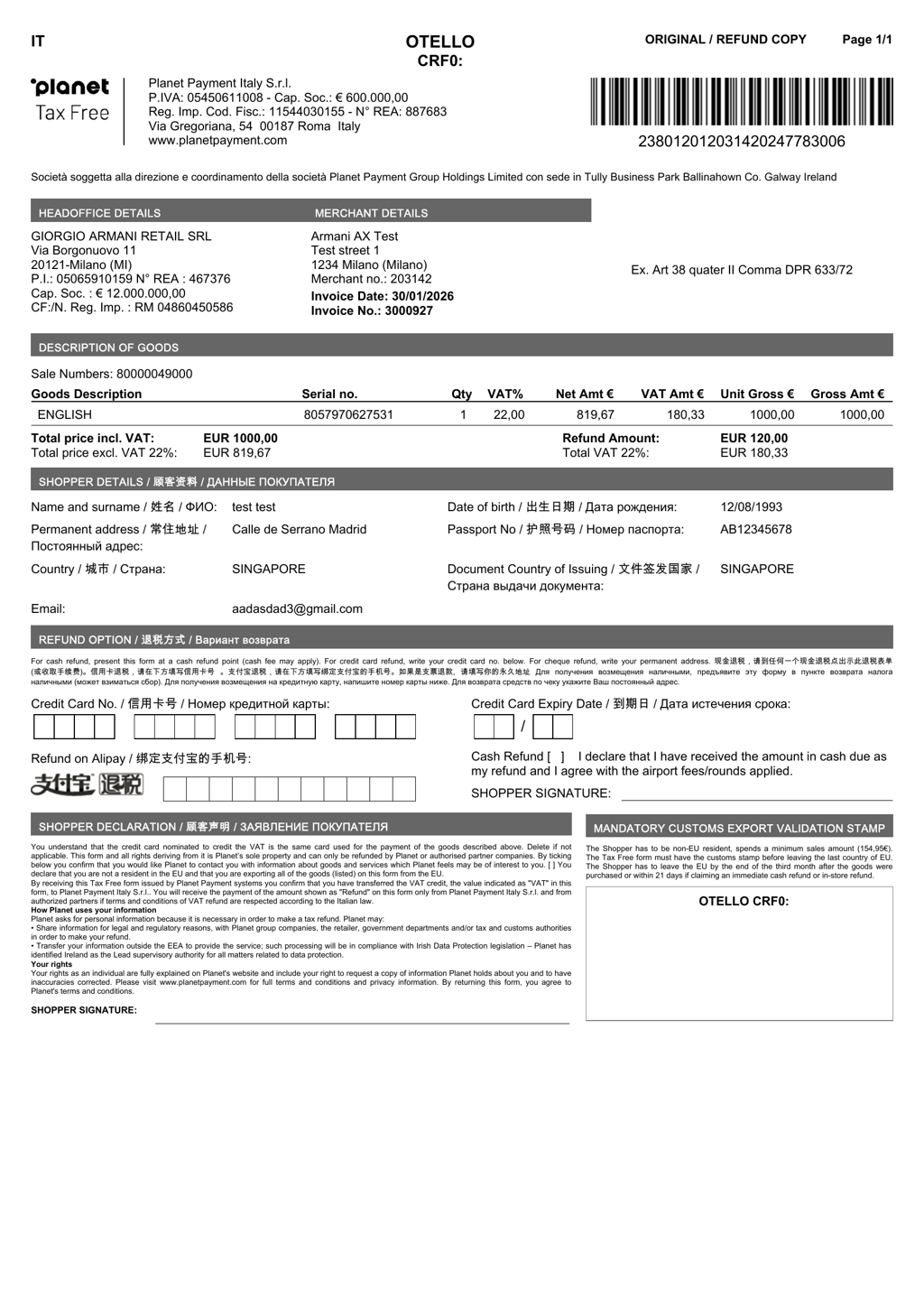
Example: A sample Planet Tax Free invoice is shown below for reference.