Print Invoice
Introduction
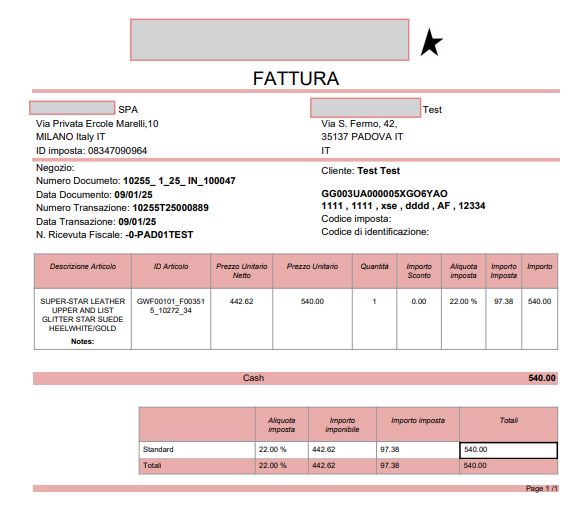
Print Invoice feature allows the user to generate a physical copy of the invoice from the XY POS system. The invoice printing option is enabled only after the payment has been processed successfully, and a receipt has been generated. This feature facilitates efficient and transparent post-transaction communication, enhancing customer satisfaction.
Steps to Print Invoice
-
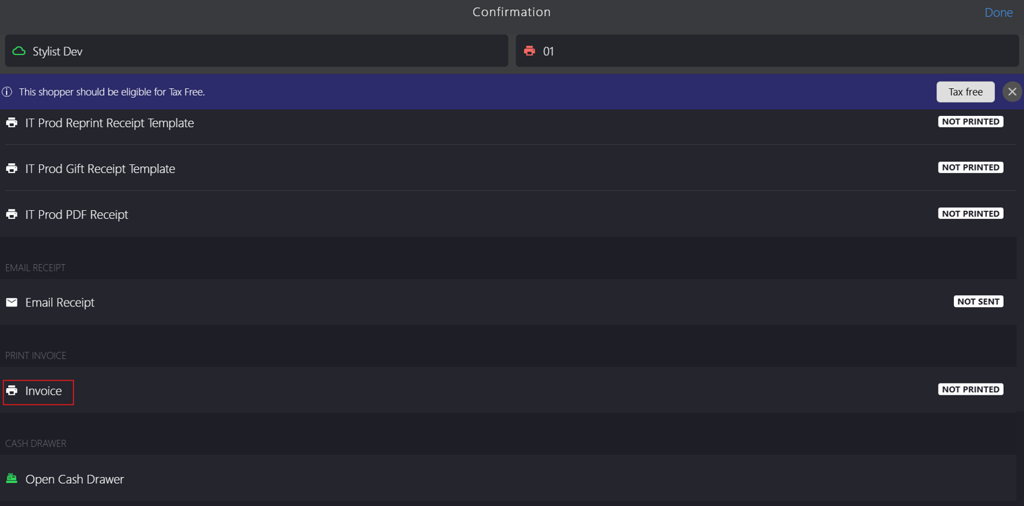
Click Invoice to open Custom Address page.
-
Select customer in the INVOICE CUSTOMERS section.
If the customer is listed, select the existing customer from the corresponding radio button next to the specific customer's name.
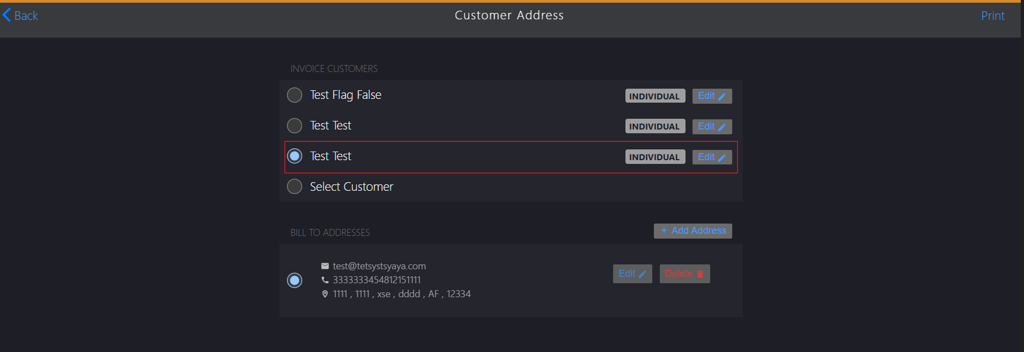
If the customer is not listed, click Select Customer.
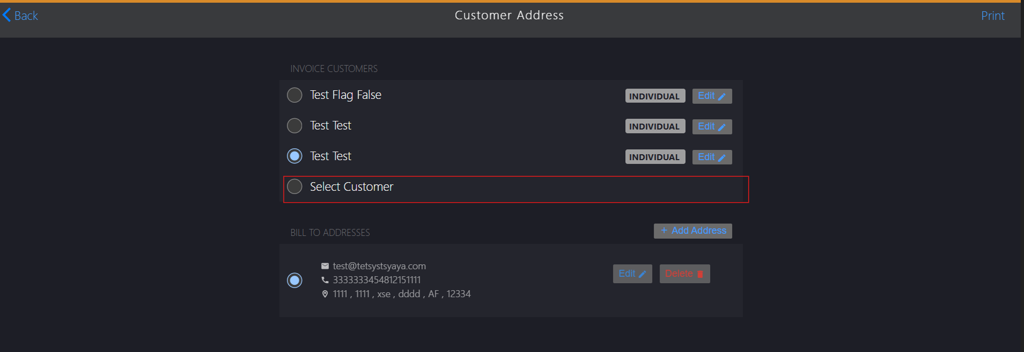
Search for the customer in the Contacts search box.
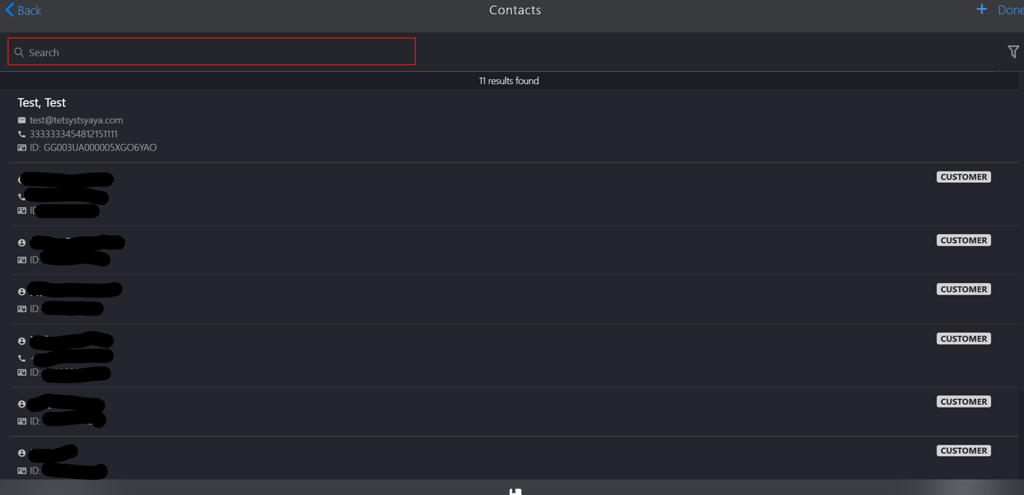
Select the customer from the search list.

-
Select the address in BILL TO ADDRESS section.
If the billing address is listed, select the address.
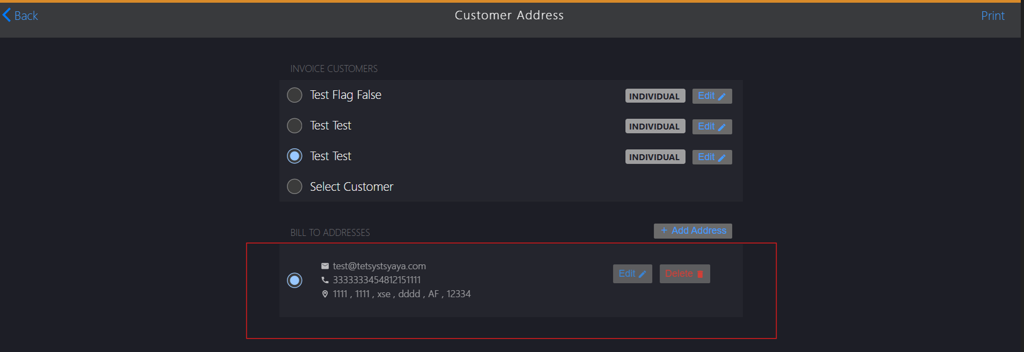
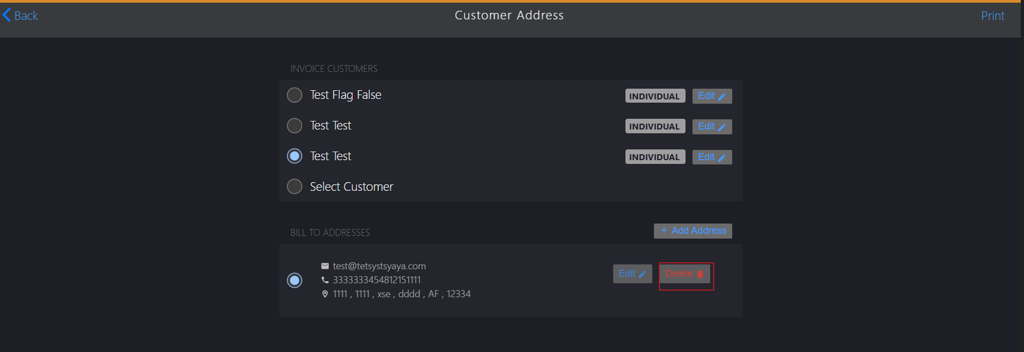
If the existing address needs to be updated, click Edit.
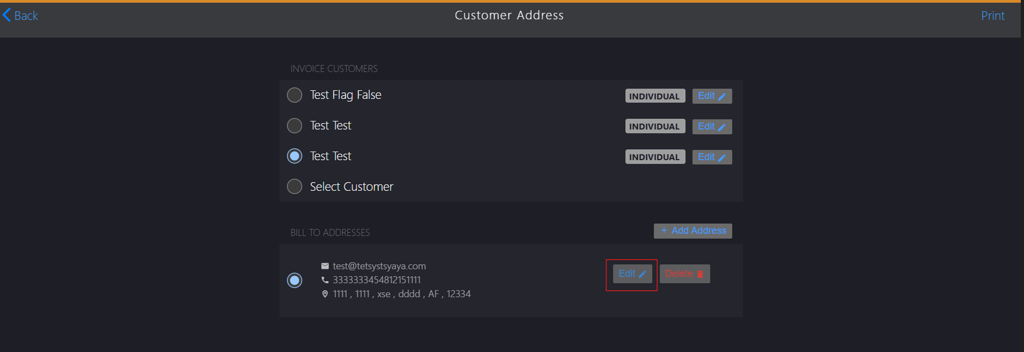
If the existing address needs to be deleted, click Delete.
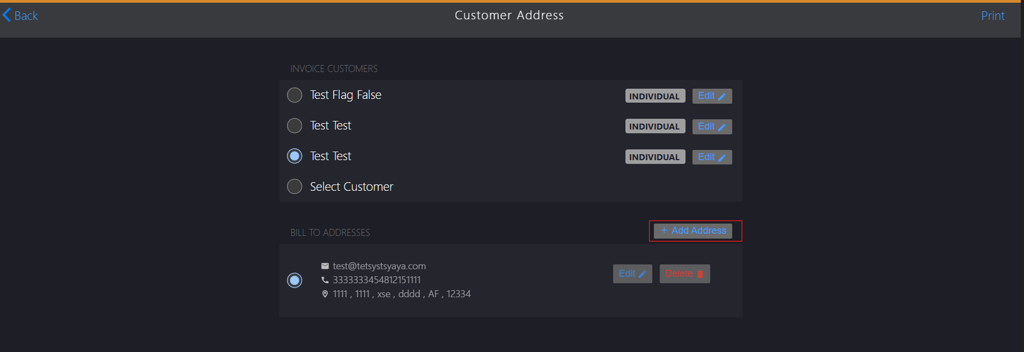
If the billing address is not available, click +Add Address.
-
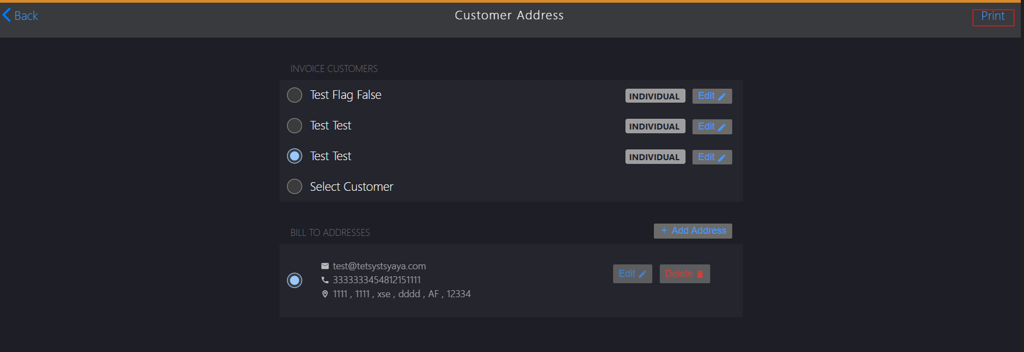
Click Print.
-
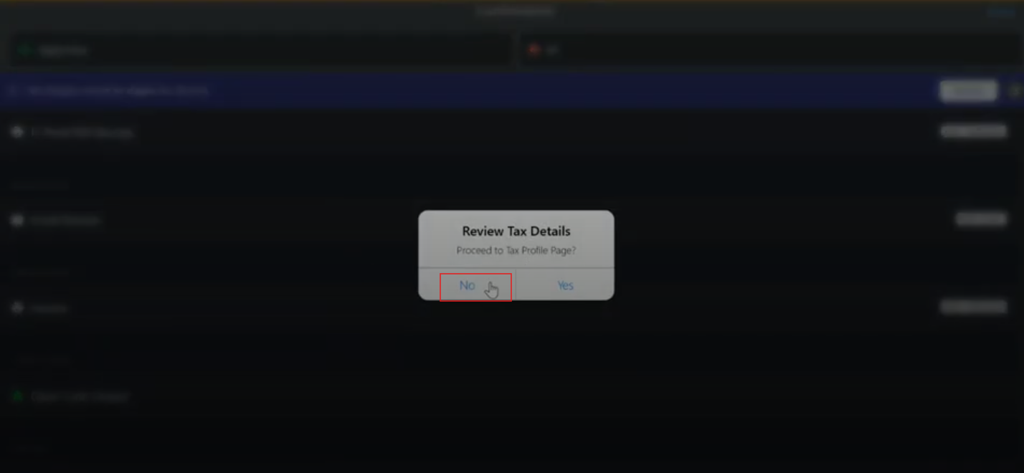
Click No in Review Tax Details dialog box to skip the review and generate a physical copy of the invoice.