Applying Tax-Free to Sales Order with Global Blue
Introduction
This topic explains how to apply tax-free via Global Blue after the payment has been processed successfully, and a receipt has been generated, provided the purchase meets the eligibility criteria.
Global Blue Overview
Global Blue Tax-Free allows store staff to generate a tax-free invoice for the customers from the XY POS system plugin through the Global Blue page. The Tax Free feature is automatically enabled after the payment has been processed successfully, and a receipt is generated. This feature facilitates efficient and transparent post-transaction communication, enhancing customer satisfaction.
Steps to Apply Sales Order Tax-Free
-
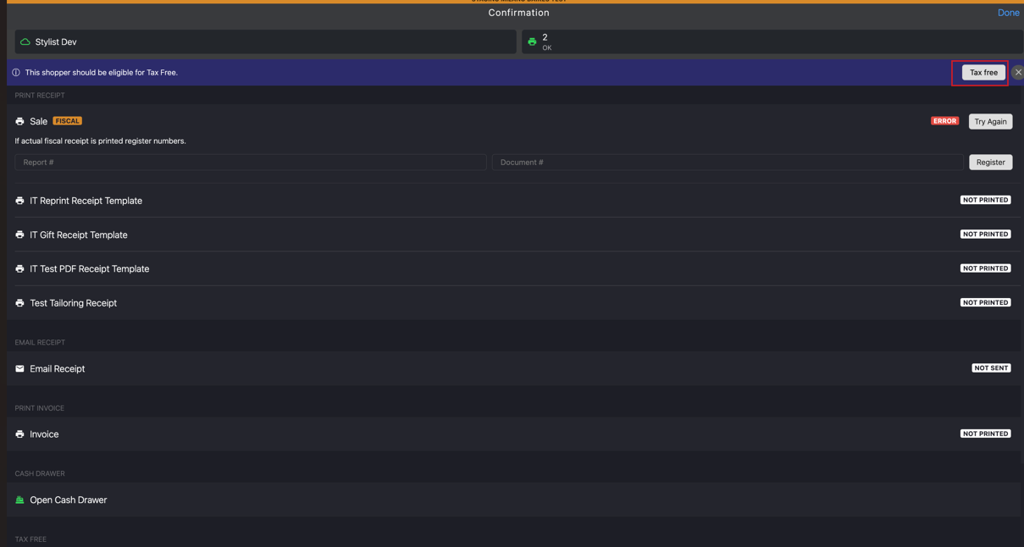
Click Tax free to access the Global Blue page.
-
Enter the following Global Blue sections:
If the customer is linked with the sales cart, follow this procedure:
- TRAVELLER
- PERSONAL INFO
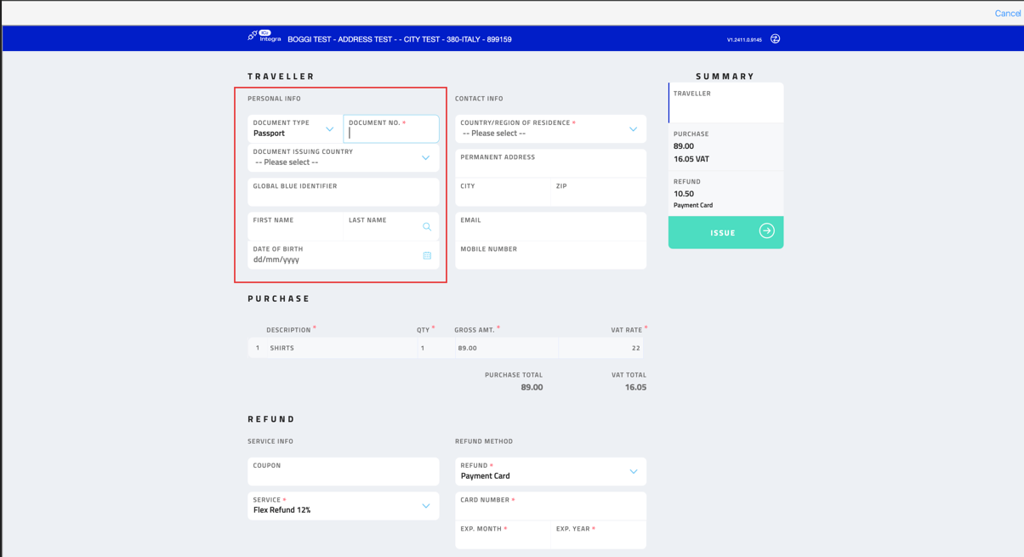
- DOCUMENT TYPE: The Passport option is selected by default.
- DOCUMENT NO.: Enter the customer's passport number.
- DOCUMENT ISSUING COUNTRY: Select the respective country from the dropdown list.
Note: After you update the Document issuing country and Document no., the following fields are automatically populated:
- Global Blue identifier
- First name
- Last name
- Date of birth
- CONTACT INFO:
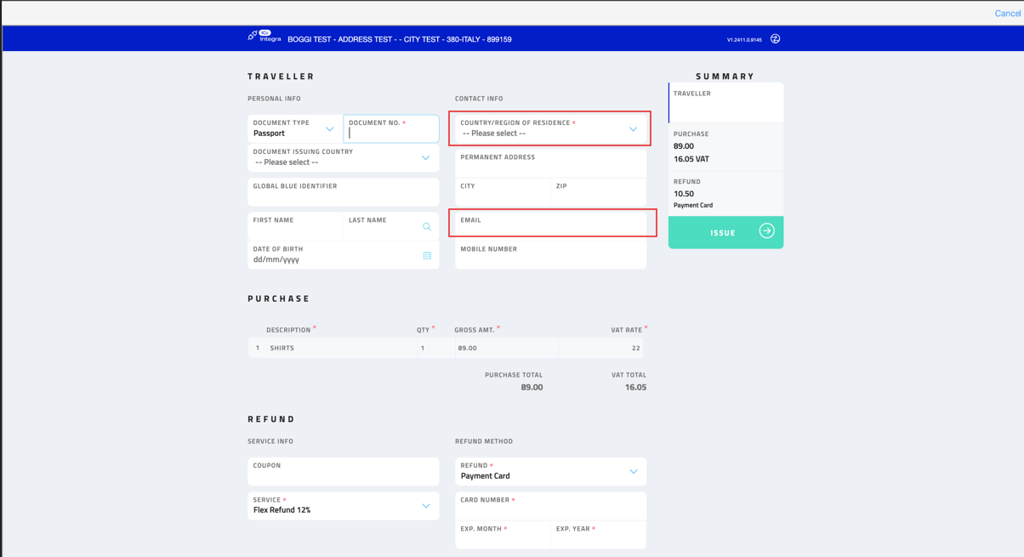
After you update the Document issuing country and Document no., the following fields are automatically populated:
- COUNTRY/REGION OF RESIDENCE
- EMAIL or MOBILE NUMBER
PURCHASE Section
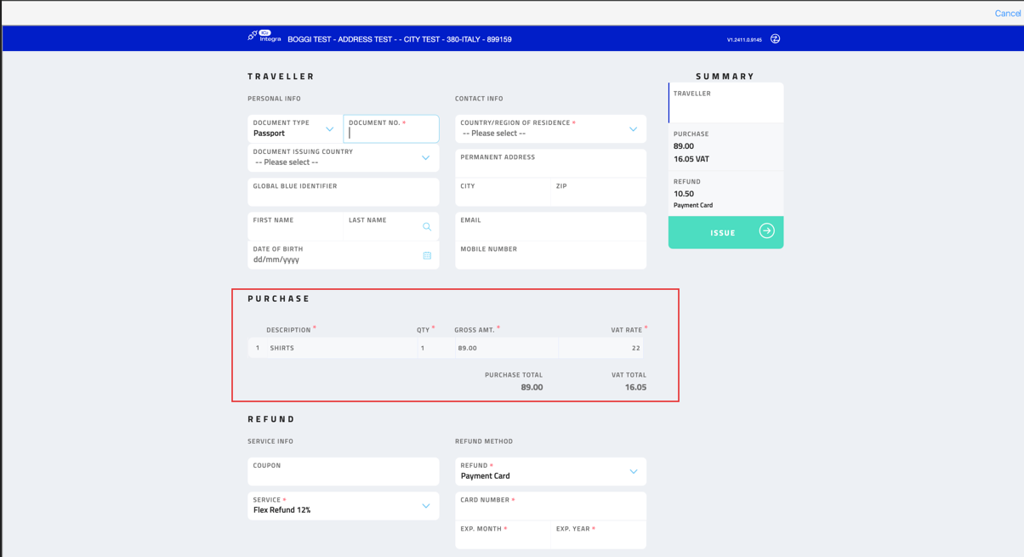
The system automatically updates the following mandatory fields:
- DESCRIPTION
- QTY
- GROSS AMT
- VAT RATE
REFUND Section
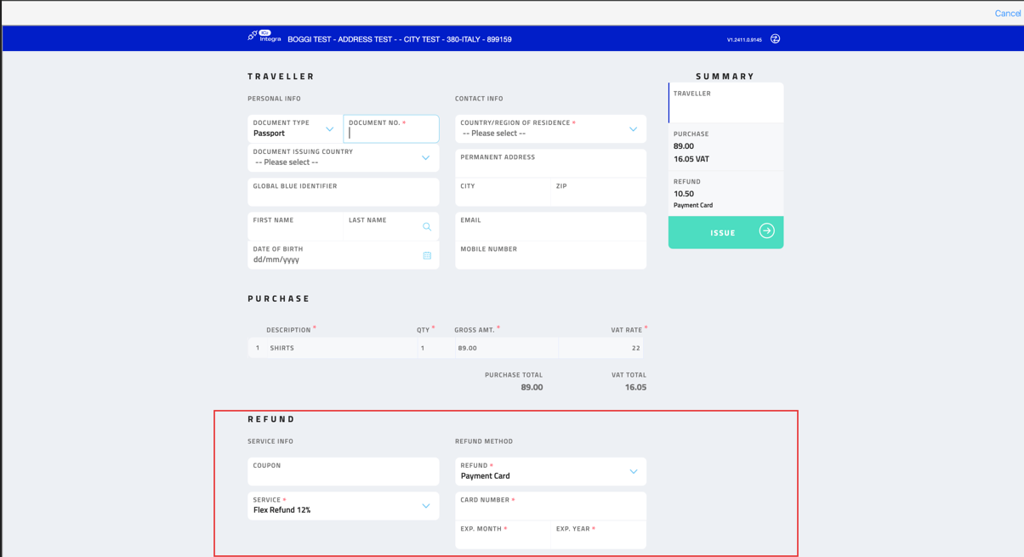
- SERVICE INFO — the system automatically updates the Service field.
- REFUND METHOD
- REFUND: Select the preferred refund method from the dropdown list.
- TRAVELLER
If the customer is not linked with the sales cart, follow this procedure:
- TRAVELLER
- PERSONAL INFO
- DOCUMENT TYPE: The Passport option is selected by default.
- DOCUMENT NO.: Enter the customer's passport number.
- DOCUMENT ISSUING COUNTRY: Select the respective country from the dropdown list.
- Global Blue identifier: Country/Passport number, for example, AUS/12412G.
- First name: Enter the customer's first name as per the passport.
- Last name: Enter the customer's last name as per the passport.
- Date of birth: Enter the customer's date of birth.
- CONTACT INFO:
- COUNTRY/REGION OF RESIDENCE: Select the appropriate country or region from the dropdown list.
- EMAIL: Enter the customer's email address.
- MOBILE NUMBER: Enter the customer's mobile phone number.
Note: Either the EMAIL or MOBILE NUMBER field must be added.
PURCHASE Section
- DESCRIPTION: Enter the product name.
- QTY: Enter product quantity.
- GROSS AMT: Enter the total gross amount for the product.
- VAT RATE: Enter the applicable VAT rate for the product.
REFUND Section
- SERVICE INFO
- Service: Select the preferred service from the dropdown list.
- REFUND METHOD
- REFUND: Select the preferred refund method from the dropdown list.
- TRAVELLER
-
Click ISSUE after filling all the mandatory fields.
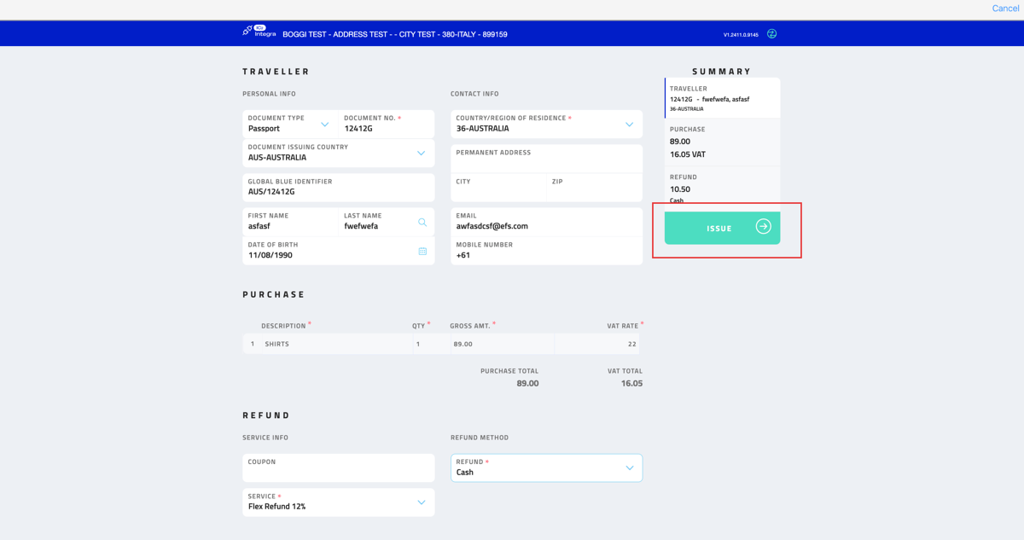
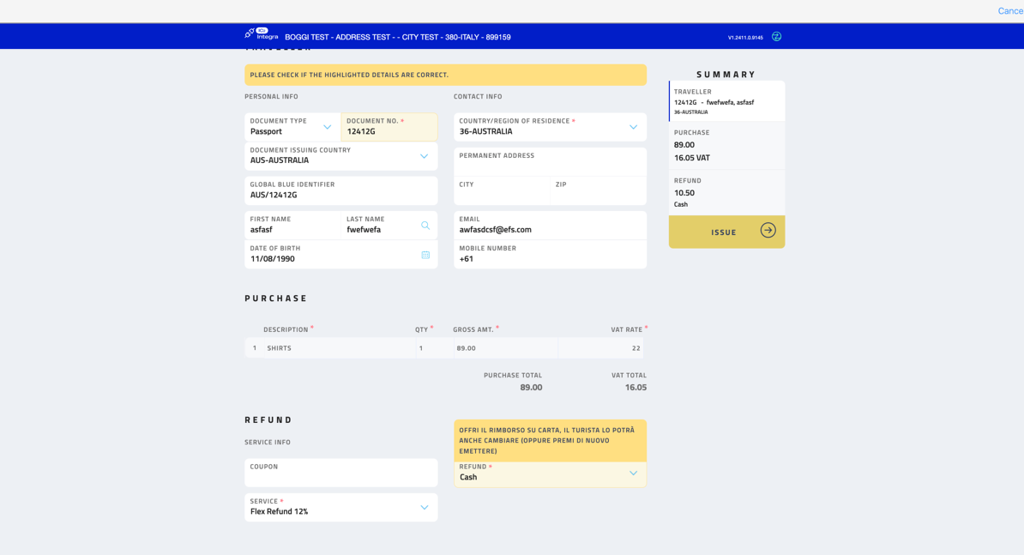
-
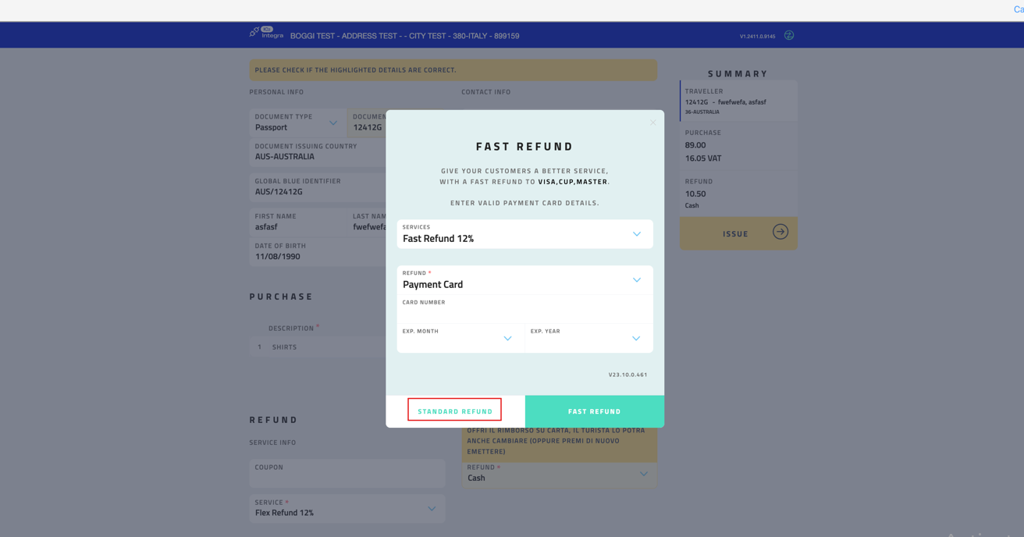
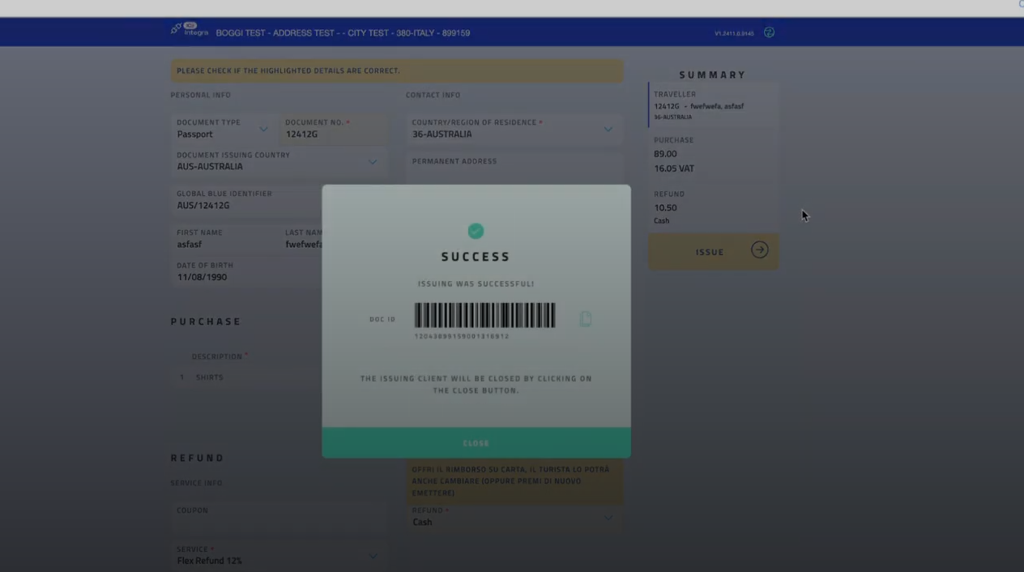
Click STANDARD REFUND in the FAST REFUND dialog box to generate Doc ID number.
-
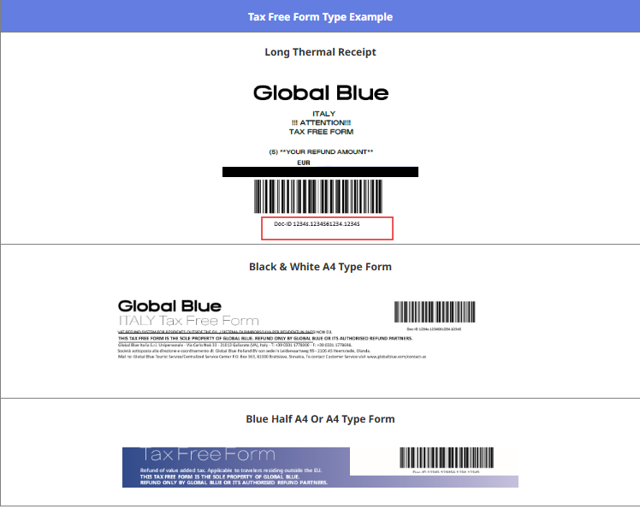
Click CLOSE in the SUCCESS dialog box to generate the Tax Free form.
-
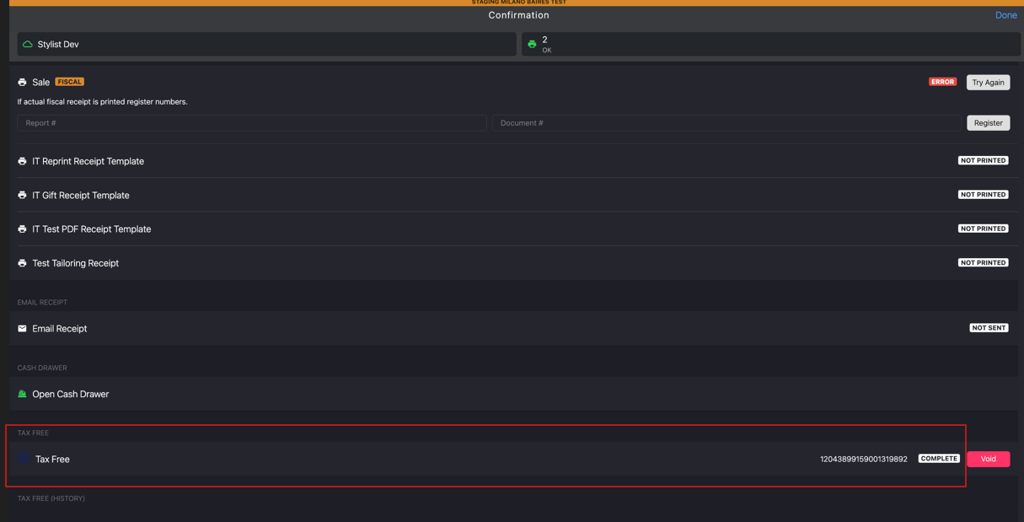
Verify that the generated DOC ID number is updated in the TAX FREE section of the Confirmation page.