Creating Friends and Family Gift Registry Account
Introduction
This topic explains the procedure to create a friends and family registry account upon customer requests.
Steps to Create Friends and Family Gift Registry Account
-
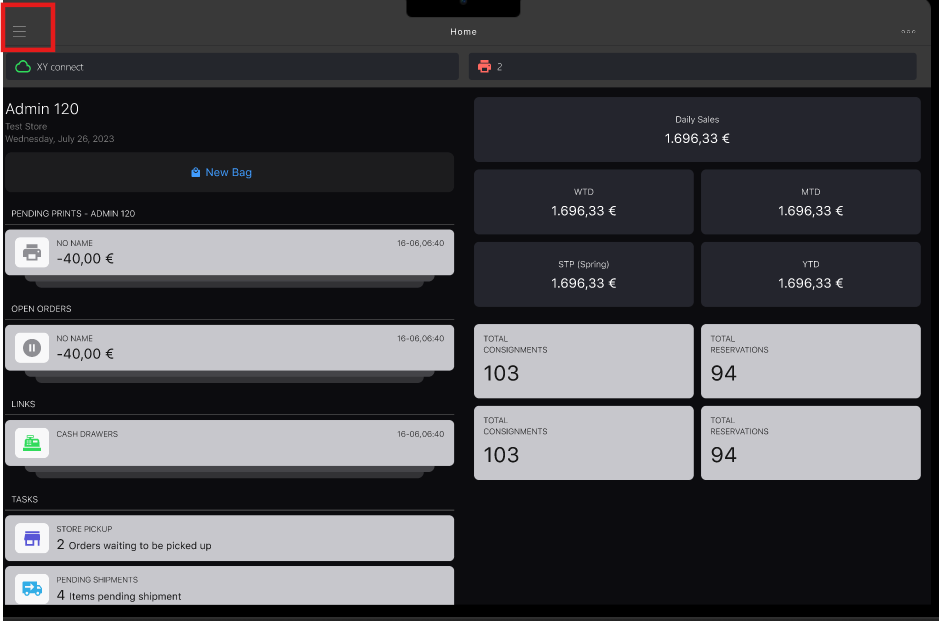
Click the burger menu.
-
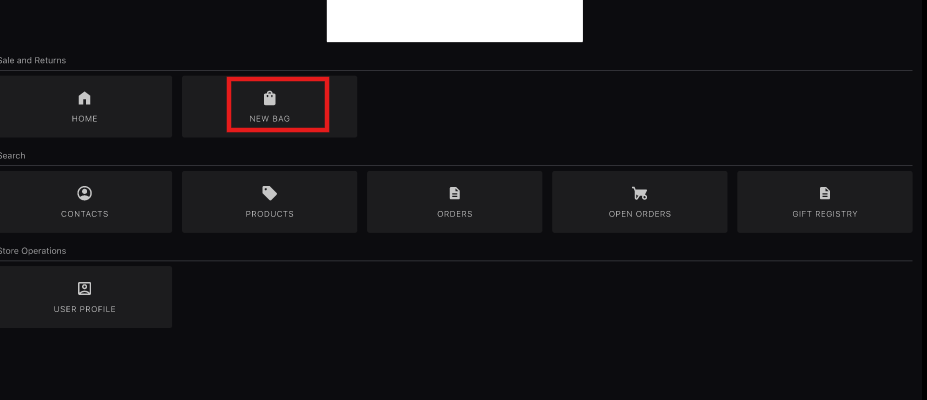
Click New Bag.
-
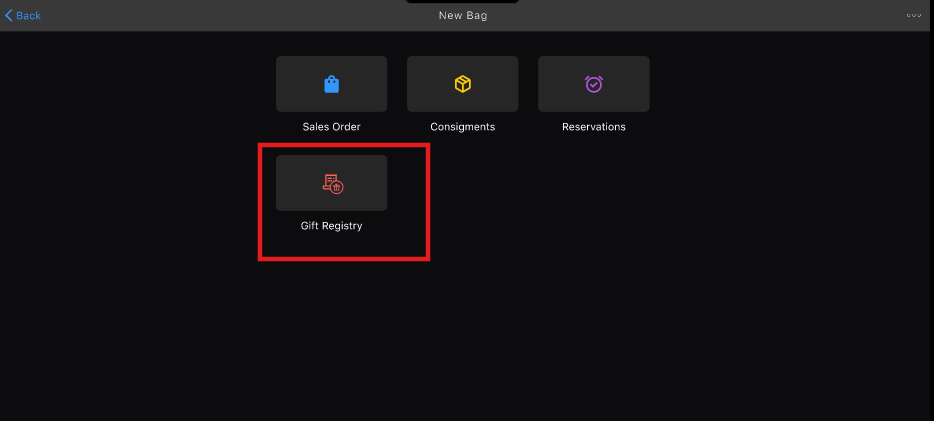
Click Gift Registry.
-
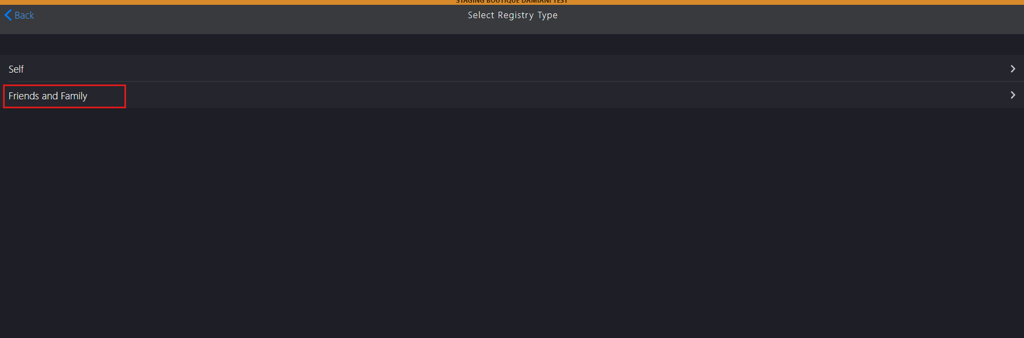
Click Friends and Family.
-
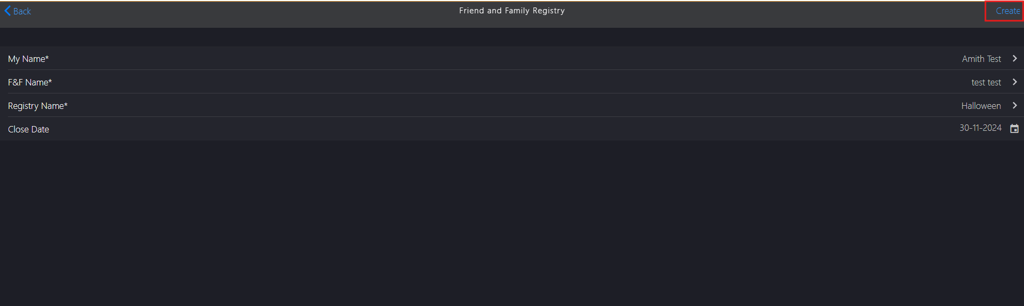
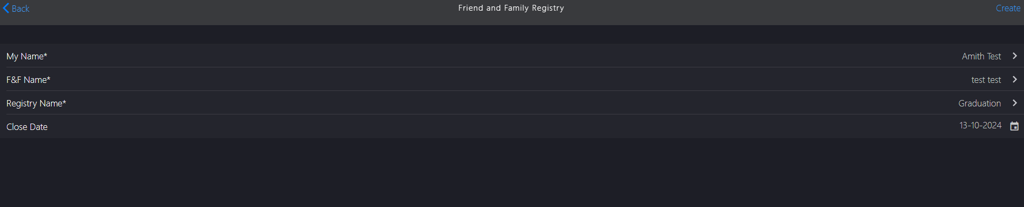
Update the following Friends and Family Registry sections:
If creating a gift registry for a registered member, complete the following steps:
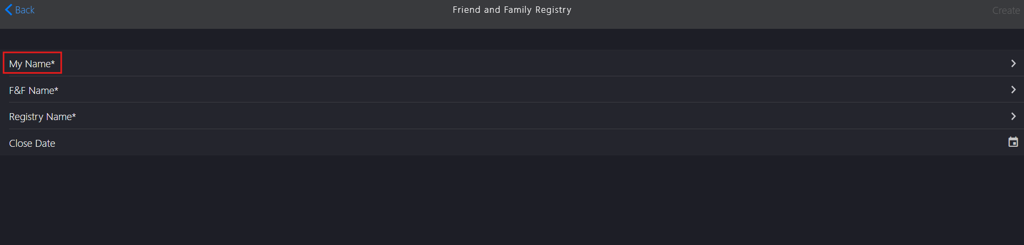
Click My Name*.
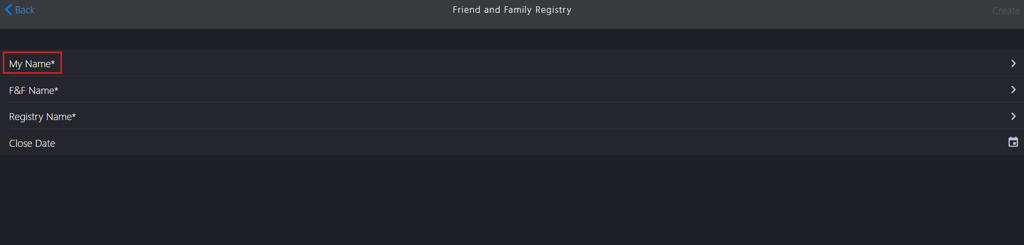
Note: This field captures the name of the person creating the gift registry account.
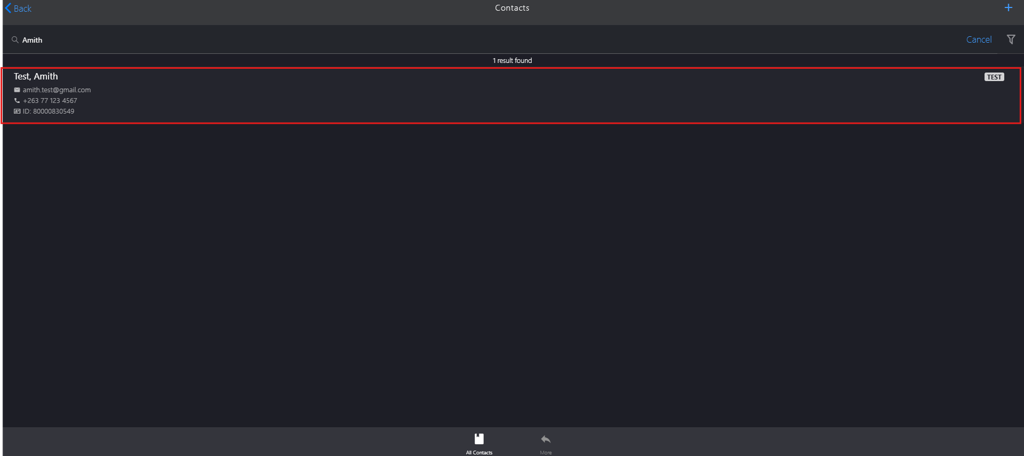
Search for the customer in the Contacts search box.
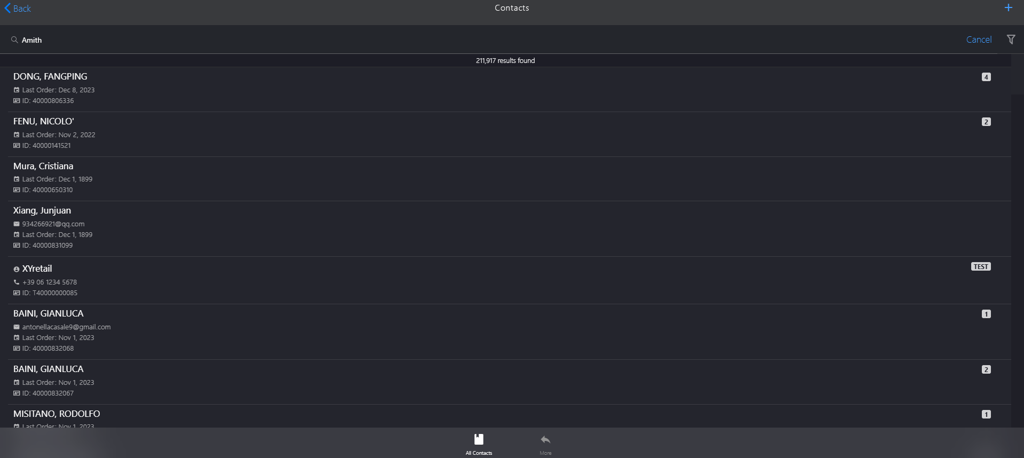
- Press the Enter key.
Select the customer from the list.

Click F&F Name*.
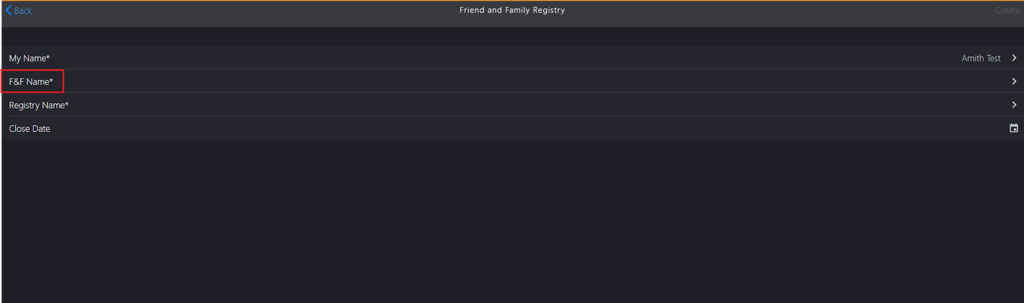
Note: This field captures the name of the friend or family member for whom the gift account is created.
Search for family or friend's name in the Contact search box.
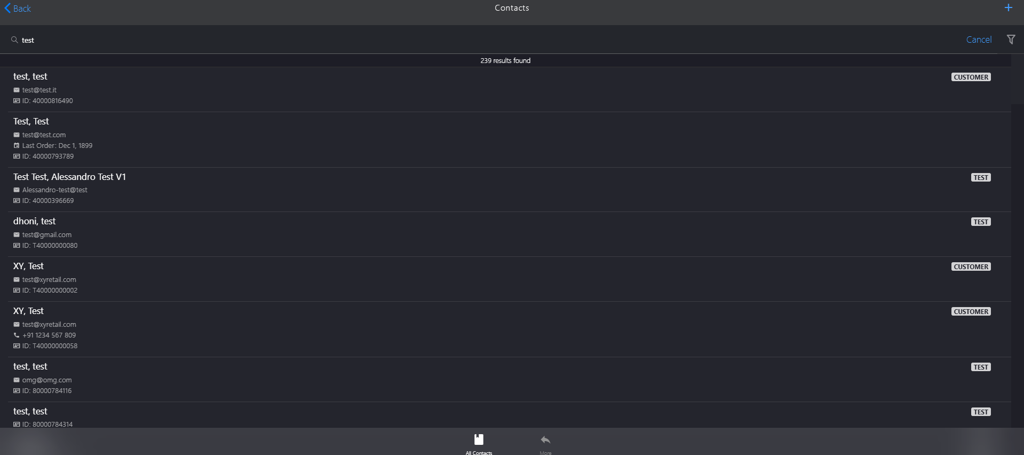
- Press the Enter key.
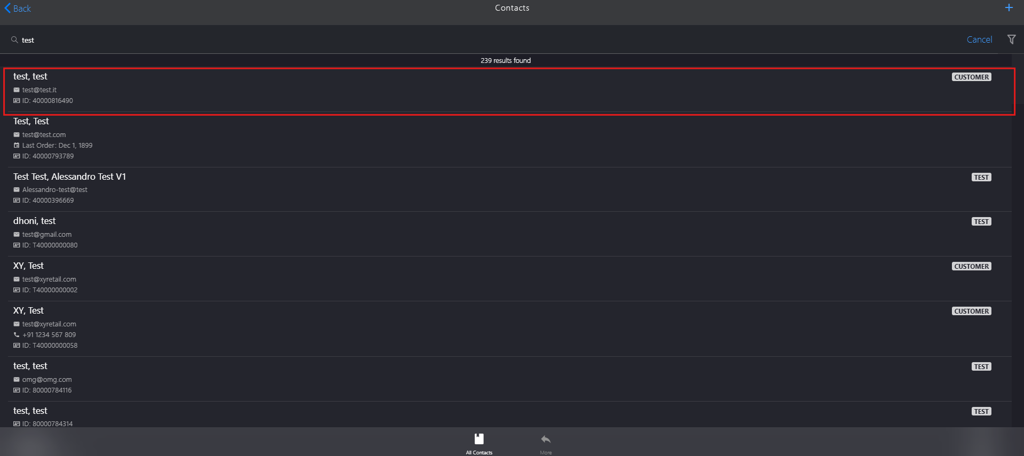
Select the family or friend's name from the list.
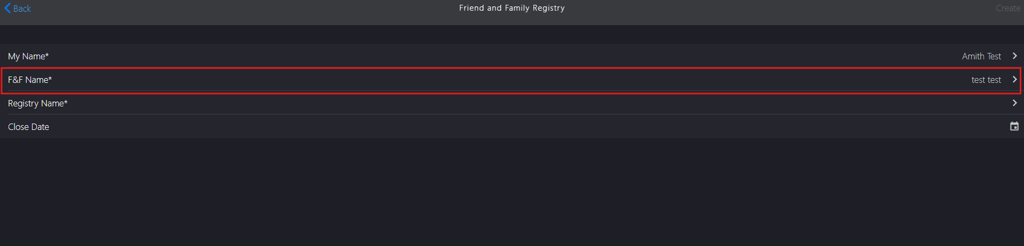
Click Registry Name*.
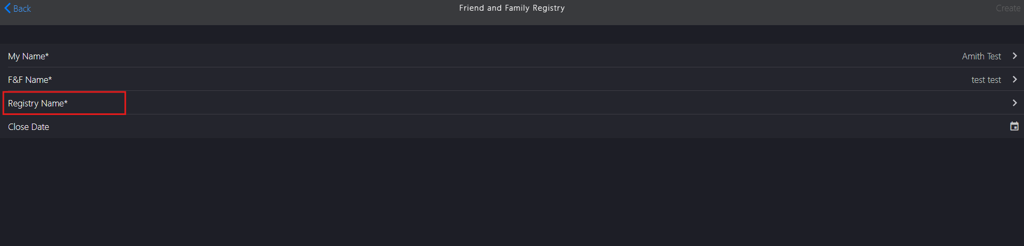
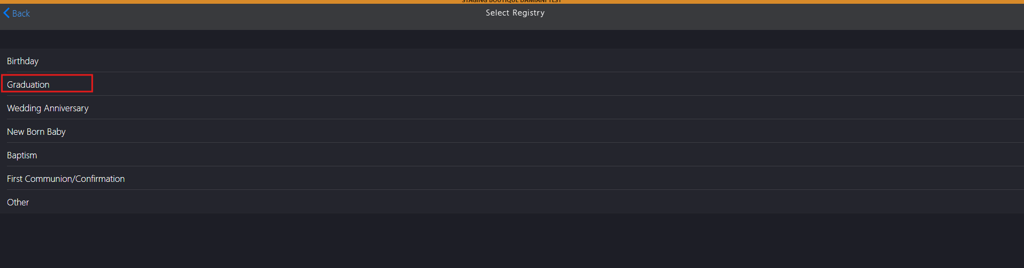
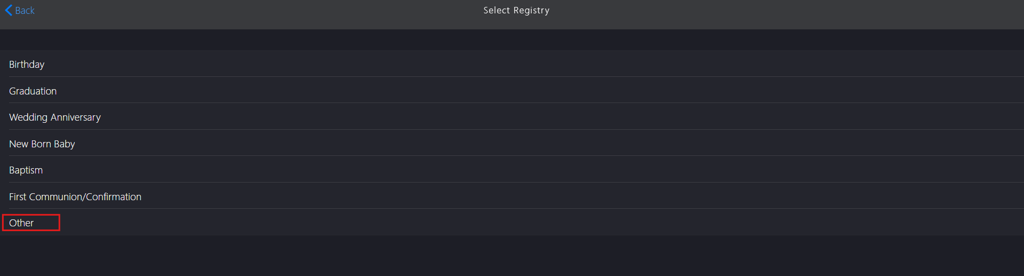
Select the category from the Select Registry list.

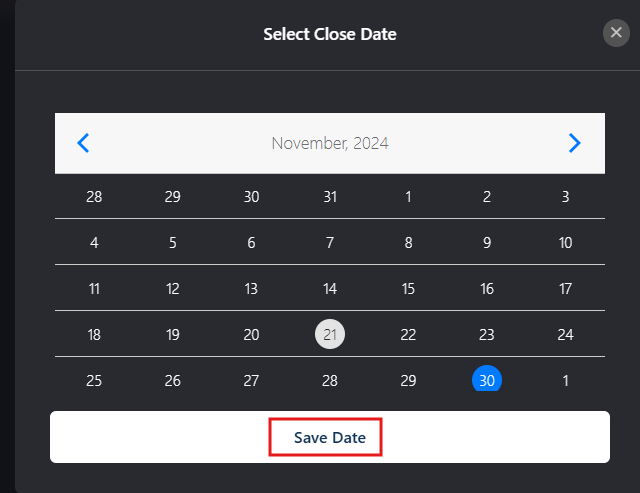
Click Close Date calendar icon.
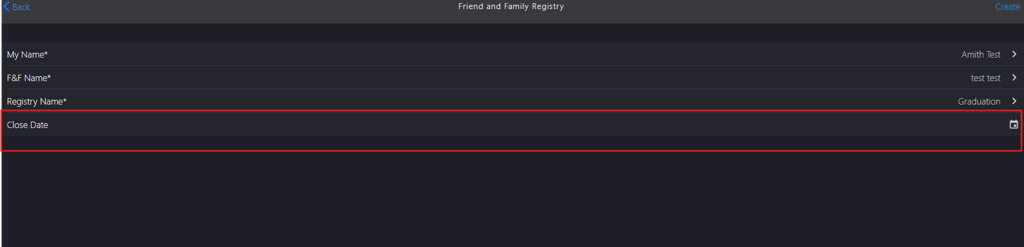
Note: Setting a gift registry close date is not mandatory. The system by default validates gift registry accounts for one year. If you require a specific closure date, you can set it using the calendar icon.
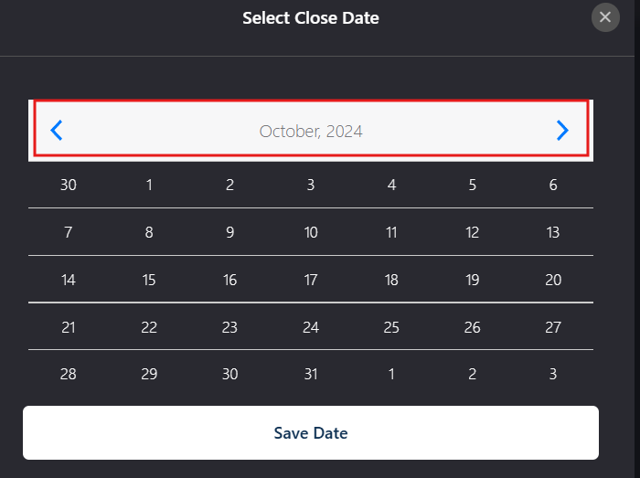
Click the left arrow to navigate to the previous month or the right arrow to proceed to the next month.
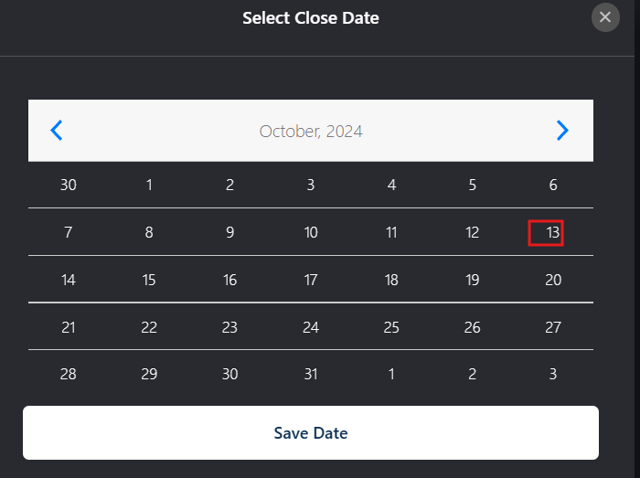
Select the closure date.
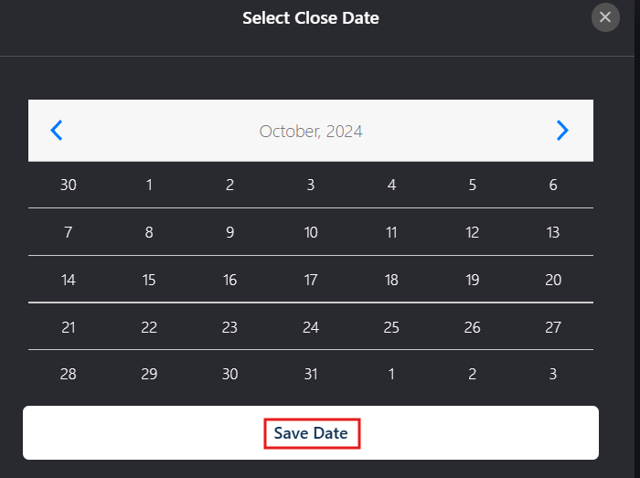
Click Save Date to create the closure date.
If creating a gift registry for an unregistered member in a new gift category, complete the following steps:
Click My Name*.
Click the Add icon and complete the following steps to register the family or friend.
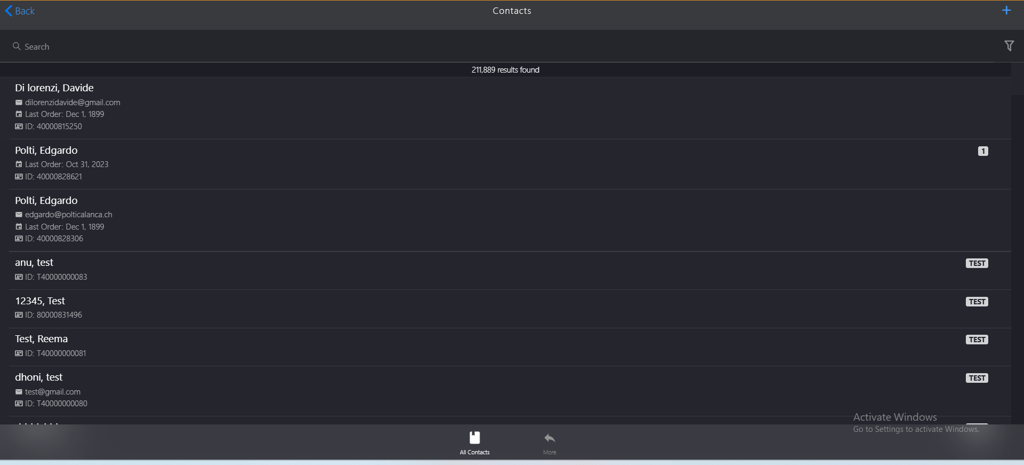
- Create a new customer profile on the New Customer page.
- Add a new address on the Customer Address page.
- Add a new tax profile on the Tax Profile page.
- Configure Marketing Permissions, Contact Preferences and Customer Signature on the Customer Profile page.
Search for the customer in the Contacts search box.
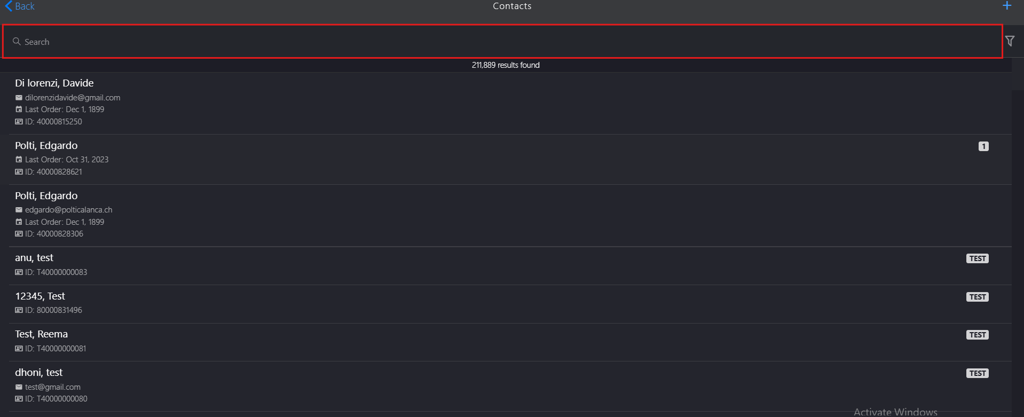
- Press the Enter key.
Select the customer from the list.

Click F&F Name*.
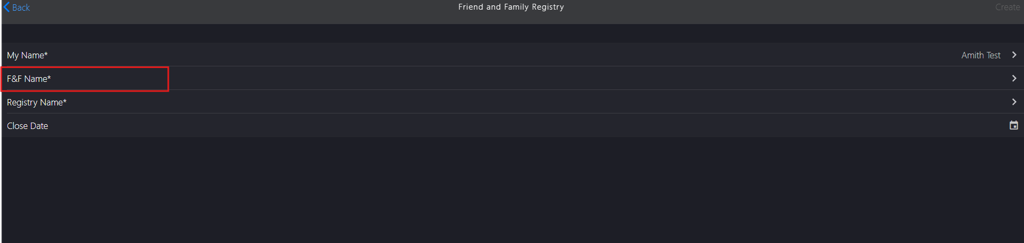
Click the Add icon and complete the following steps to register the family or friend.
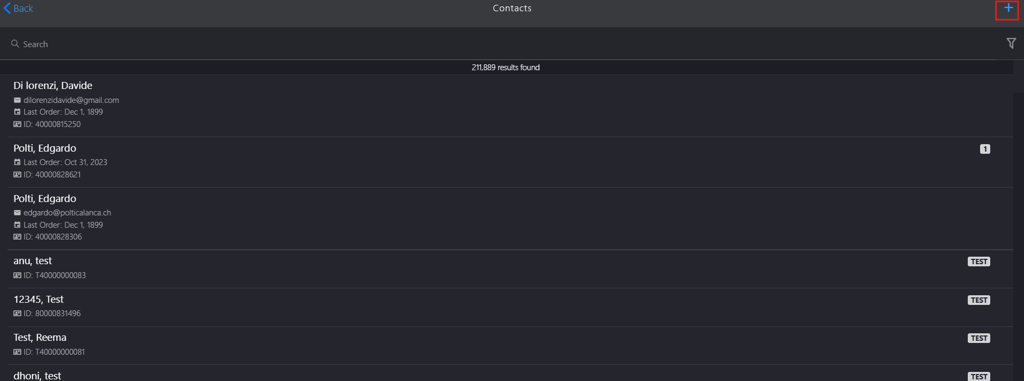
- Create a new customer profile on the New Customer page.
- Add a new address on the Customer Address page.
- Add a new tax profile on the Tax Profile page.
- Configure Marketing Permissions, Contact Preferences and Customer Signature on the Customer Profile page.
Search for family or friend's name in the Contact search box.
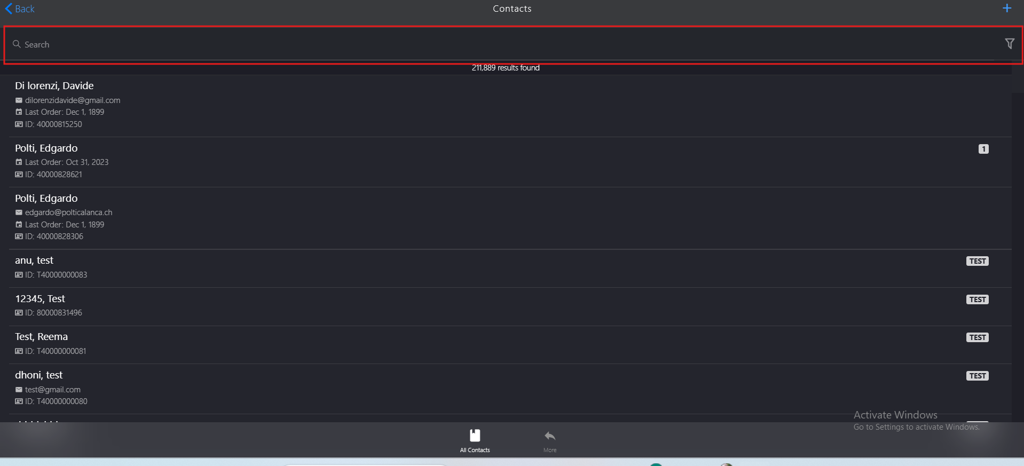
- Press the Enter key.
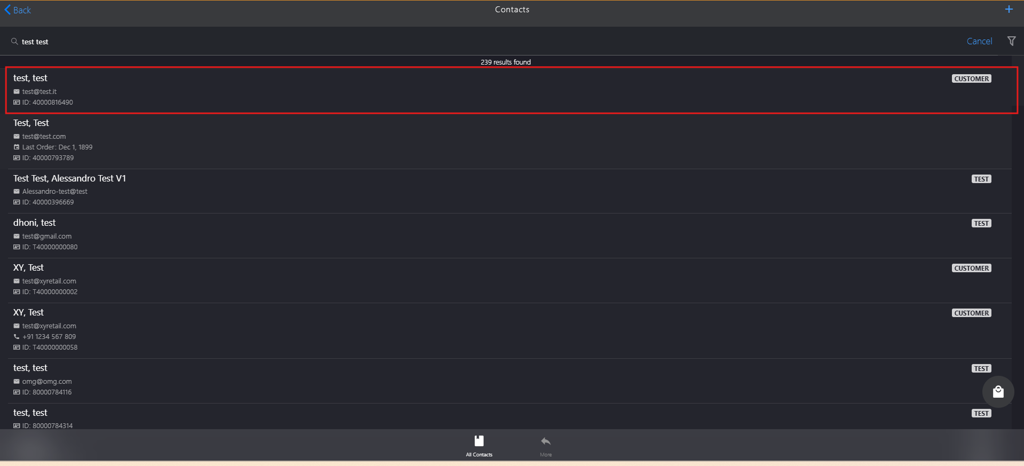
Select the family or friend's name from the list.
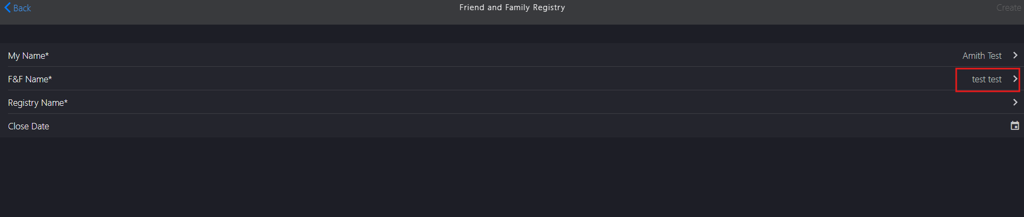
Click Registry Name*.
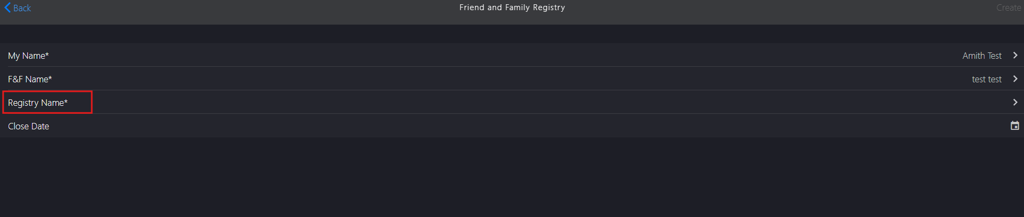
Select Other from the Select Registry list.
Enter the new registry name in the Registry Name field on the Add New Registry page.

Click Done to add the new category to Registry Name.


Click Close Date calendar icon.

Note: Setting a gift registry close date is not mandatory. The system by default validates gift registry accounts for one year. If you require a specific closure date, you can set it using the calendar icon.
Click the left arrow to navigate to the previous month or the right arrow to proceed to the next month.
Select the closure date.
Click Save Date.
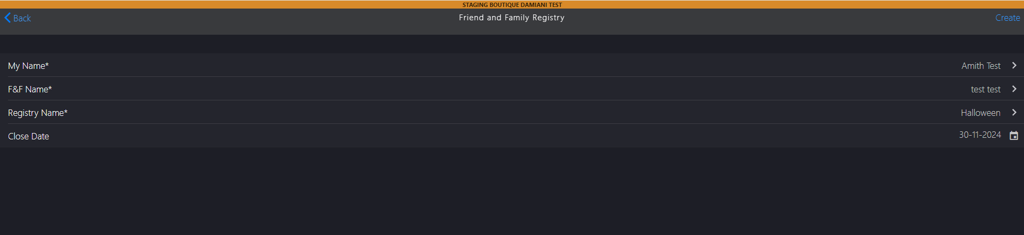
-
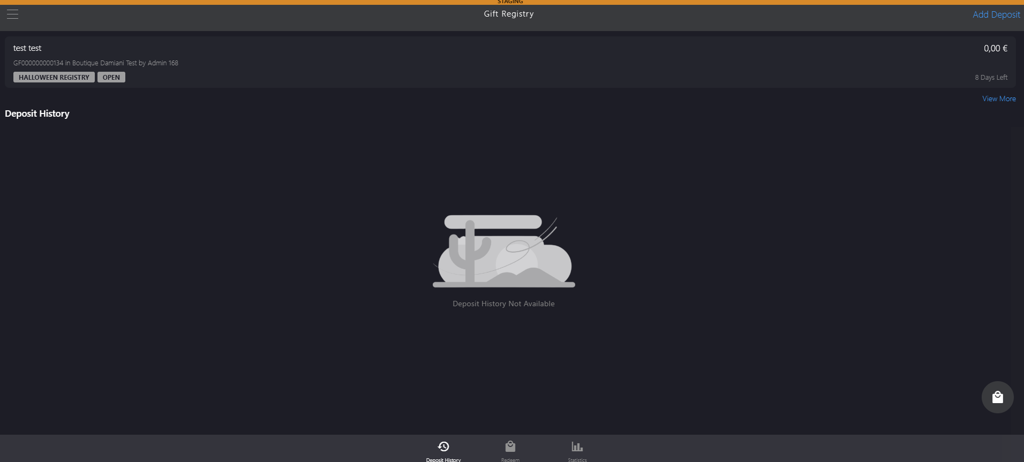
Click Create to complete the gift registry account creation.