Built-in Deposit Filter
Introduction
Built-in deposit filter enhance the search experience with the drop-down menu filter category. You can tailor and sort the results to meet your precise requirements by selecting and applying specific criteria.
Filter Features
Sorting
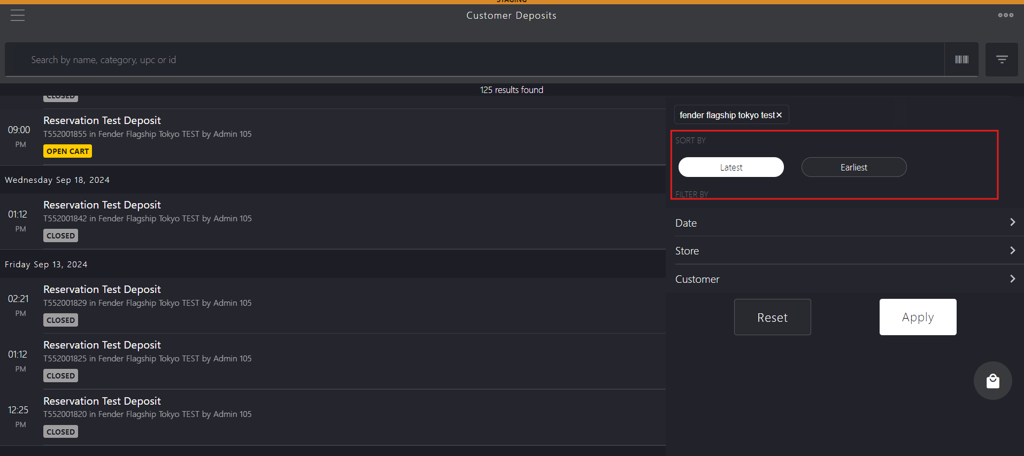
| Sorting Criteria | Description |
|---|---|
| Latest | Select the Latest option to view orders from the most recent date to the oldest. |
| Earliest | Select the Earliest option to view orders from the oldest date to the most recent. |
Filter
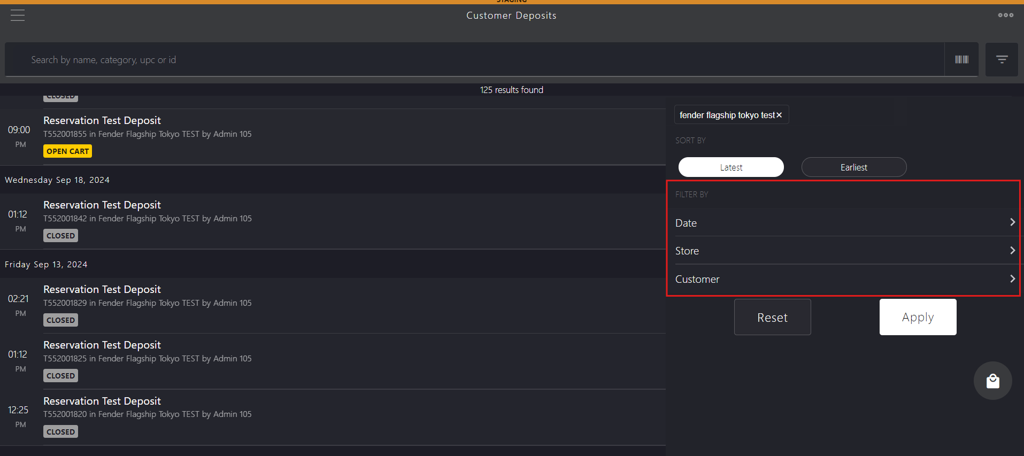
| Filter Category | Description |
|---|---|
| Date | Select Custom Range or Quick Link options to search for orders by the date they were generated. Custom Range: Select a date range when the order was generated. Start: Click the start date field to select the date from the calendar.End: Click the end date field to select the end date from the calendar. Quick Links: Select from one of the following options when the order was generated: TodayYesterdayWeek to DateMonth to DateYear to Date |
| Store | Select the checkbox for the store where the orders were generated. |
| Customer Name | Search for the order by entering the customer's full name in the Enter Customer Last Name field who placed the order. |
Action Buttons
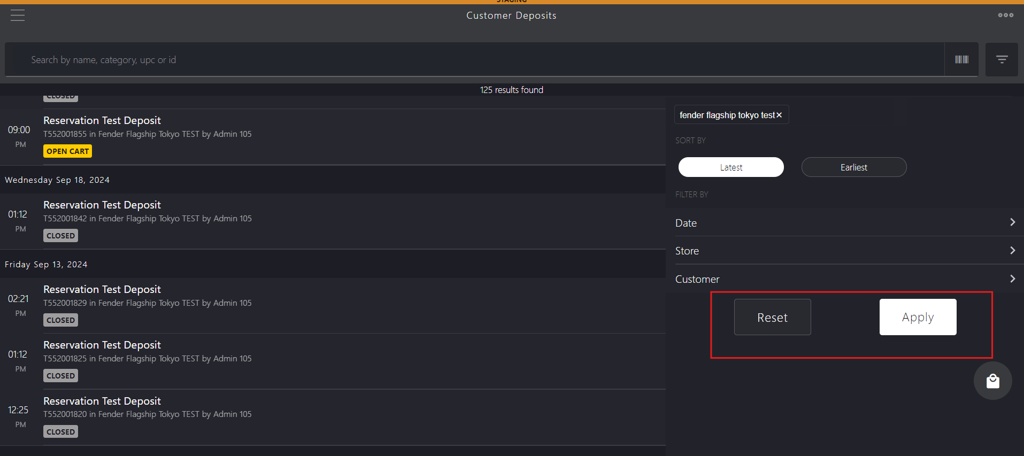
| Action Buttons | Description |
|---|---|
| Apply | Click the Apply button to apply filter criteria and display the requested order or orders list. |
| Reset | Click the Reset button to remove all the applied filters and return to default view. |