Configuring Marketing Permissions, Contact Preferences, and Customer Signature to Customer Profile
Introduction
This topic explains the procedure for adding marketing permissions, contact preferences and customer signature to the customer profile.
Steps to Add Marketing Permissions, Contact Preferences, and Customer Signature to Customer Profile
-
Click the toggle button in the Permissions section to activate (blue) only if the customer agrees to the following options:
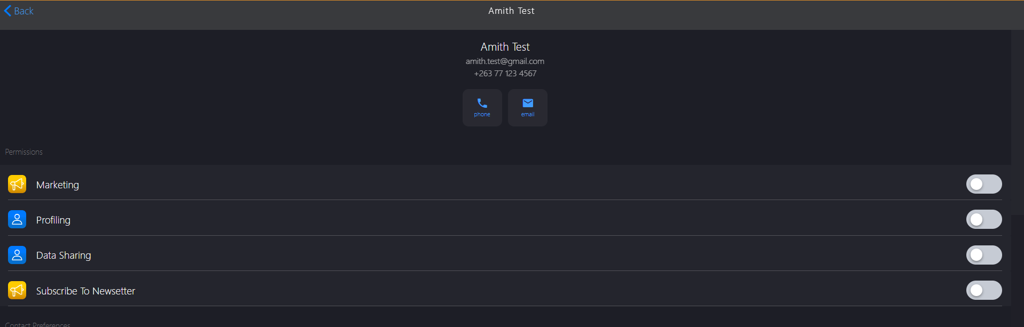
- Marketing
- Profiling
- Data Sharing
- Subscribe to Newsletter
-
Click the toggle button in the Contact Preferences section to activate (blue) only if the customer agrees for the following options:
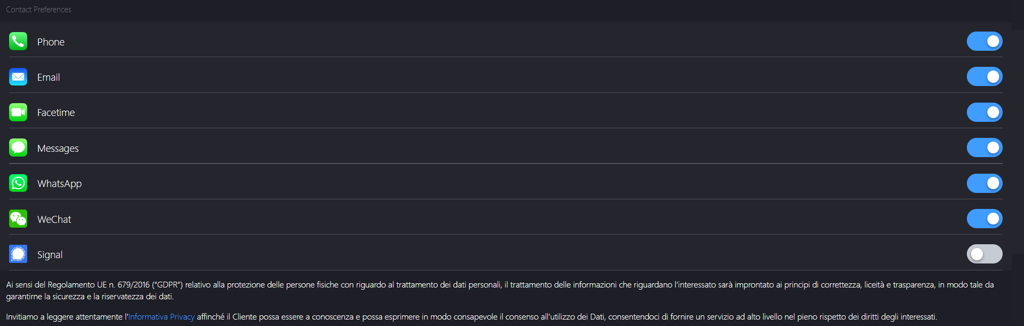
- Phone:
- Facetime
- Messages
- Signal
-
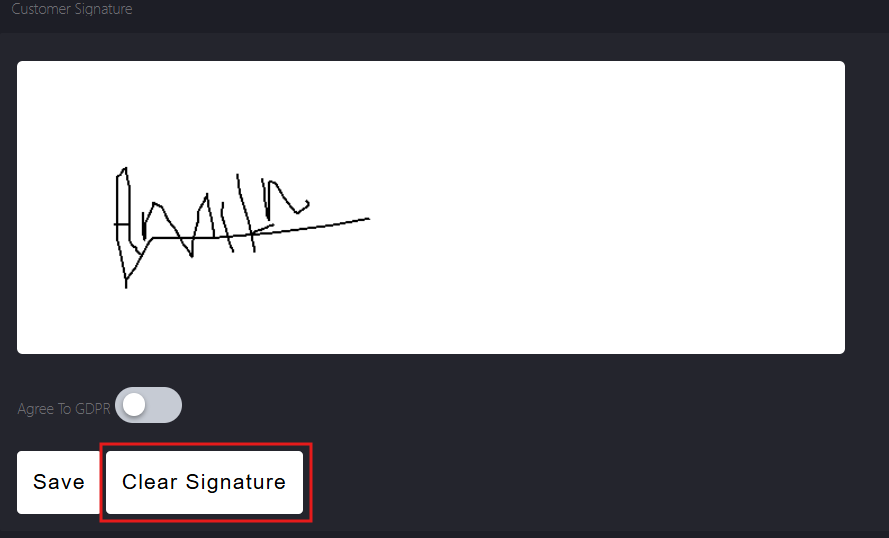
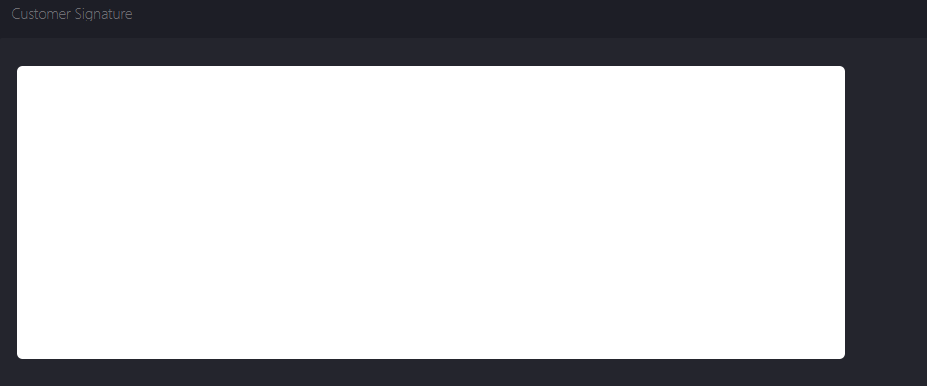
Customer need to type the signature in the Customer Signature field.
-
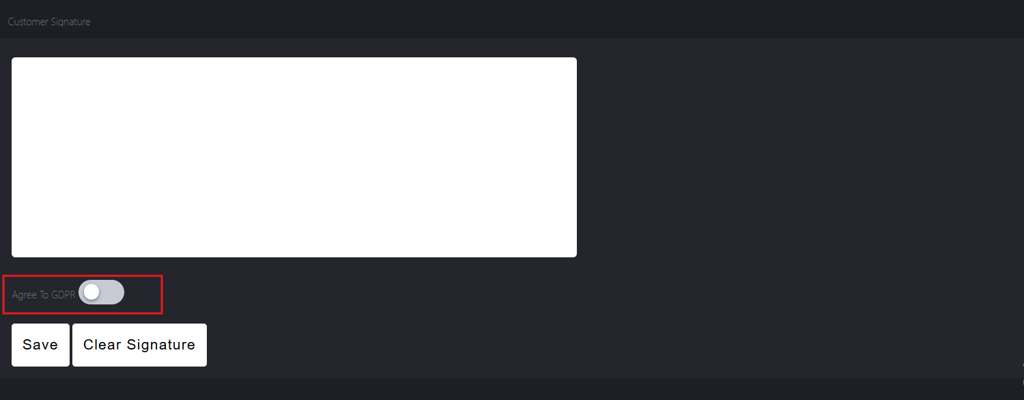
Click the Agree To GDPR toggle button to accept GDPR compliance.
-
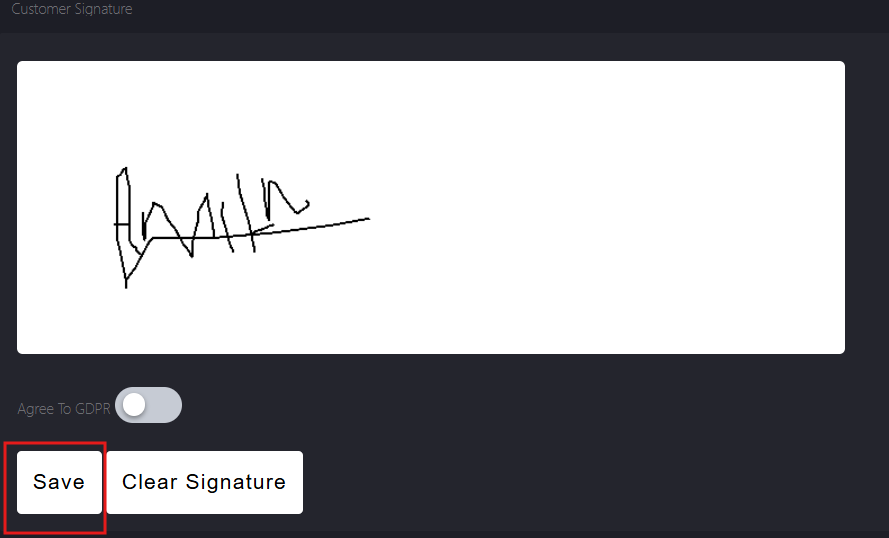
Click Save to save the signature.
-
Click Clear Signature to remove the current signature and allow the customer to type a new one.