Creating Sale from a Consignment
Introduction
This topic explains the procedure when a customer proceeds with the purchase from a consignment.
Steps to Create a Sale from a Consignment
-
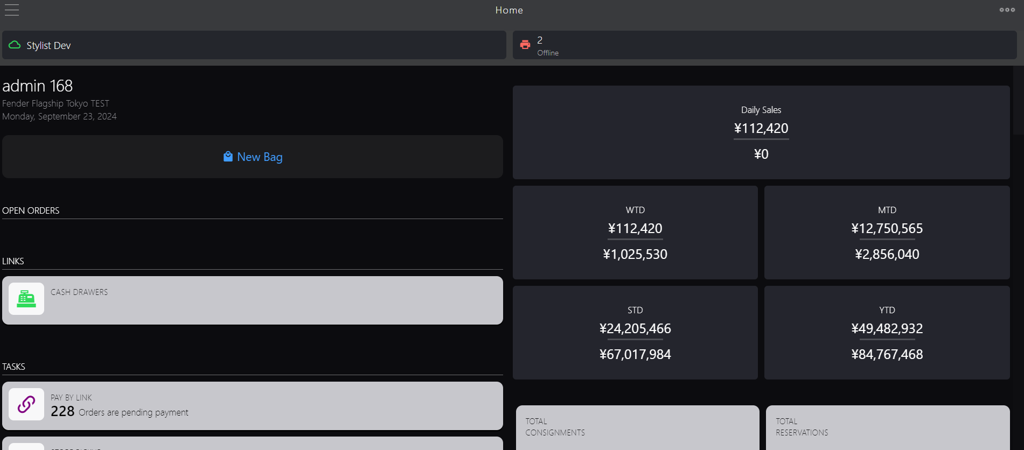
Click the burger menu.
-
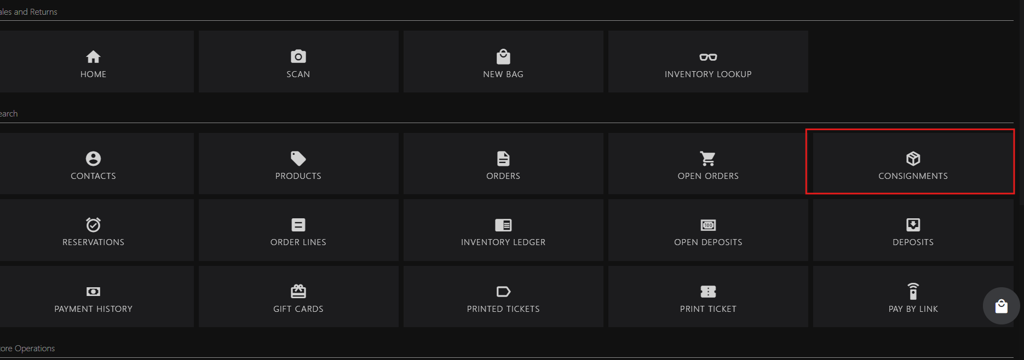
Click CONSIGNMENTS.
-
Search for the consigned orders using any of the following methods:
-
Enter any of the following criteria in the search box:
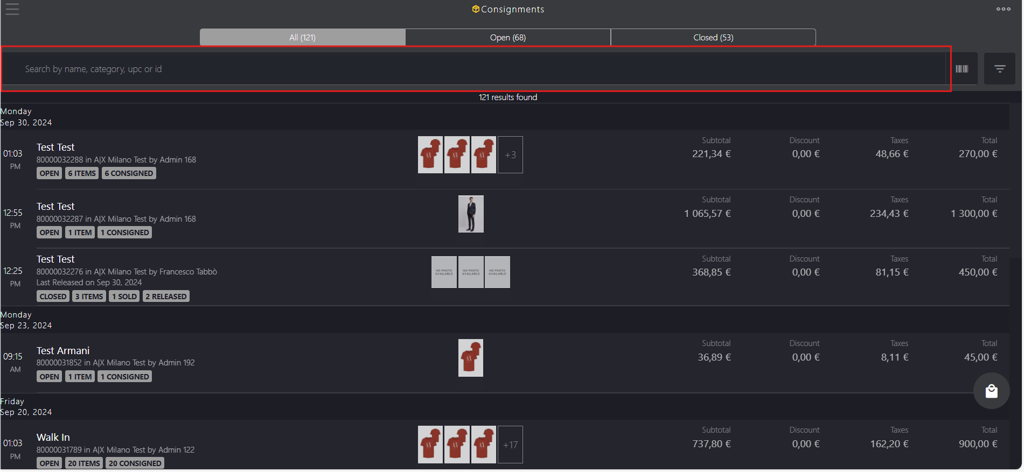
- name: Enter the customer's name.
- category: Enter the reservation cart status (Open, Closed, or Partially Closed).
- upc: Enter the item's UPC.
- id: Enter the order id.
-
Scan the item barcode.
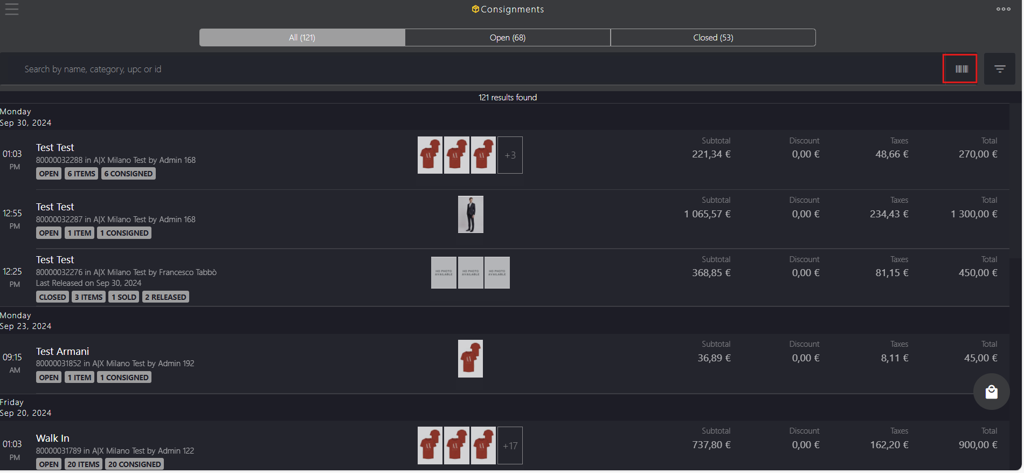
-
Apply the filters based on the category.
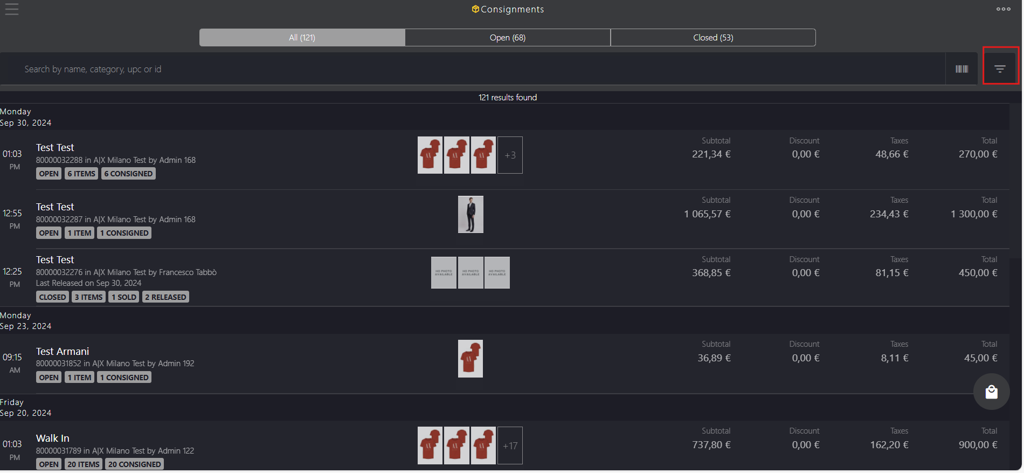
-
-
Select the order number from the list.
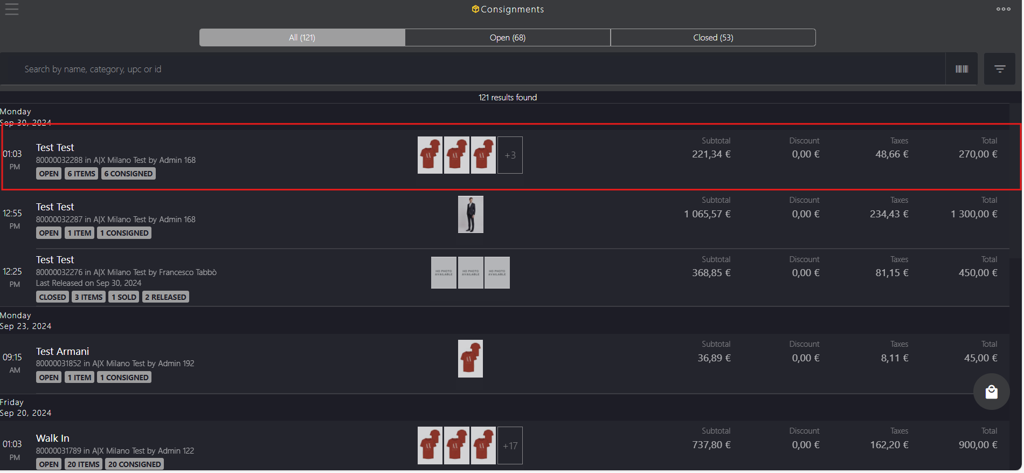
-
Click Sale on the bottom bar to purchase the item.
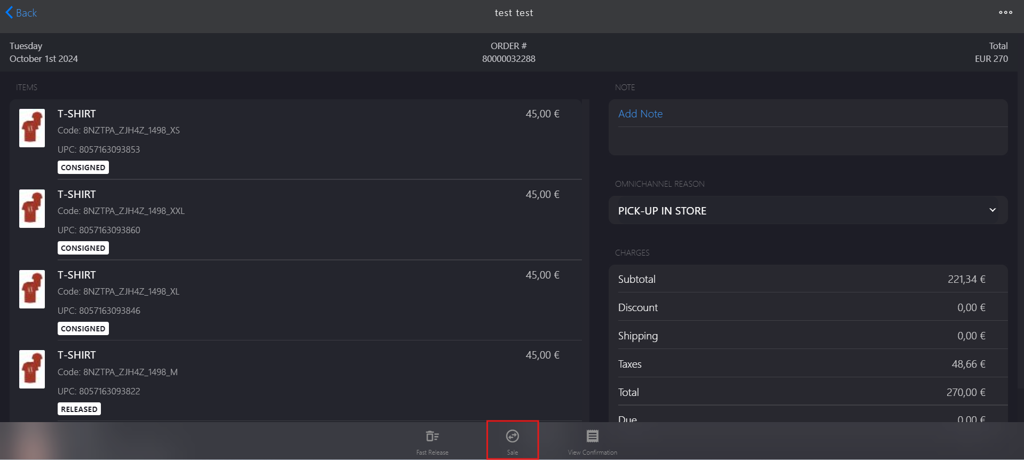
-
Click the item to perform the following item level change:
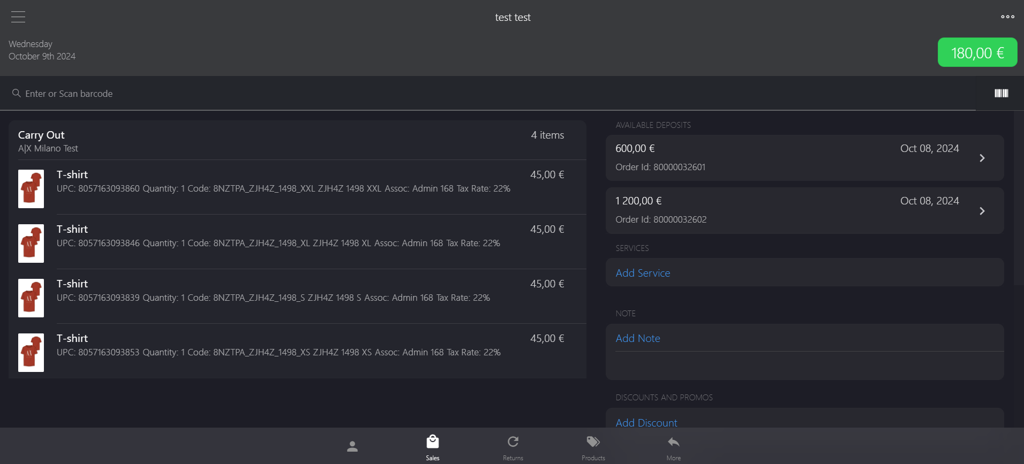
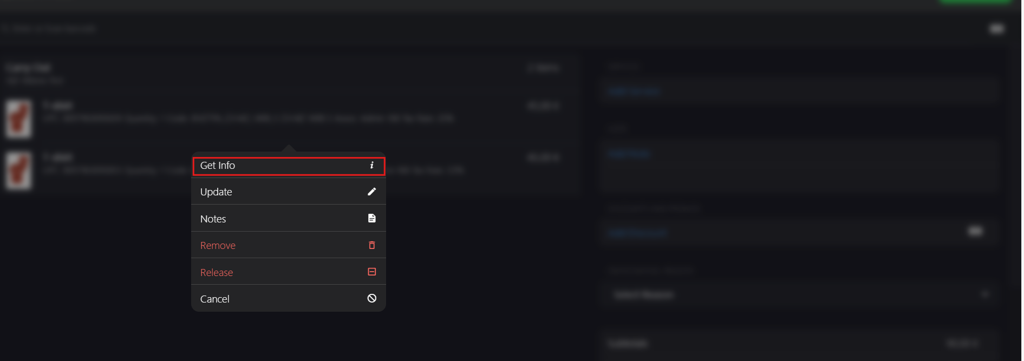
Select Get Info from the pop-up menu to view item details:
- View Product: Displays the item information.
- Action: Displays purchase status, for example, Buy.
- Delivery: Displays the current delivery stage of the item.
- Sales Associate: Displays the associate's name handling the sale.
- Unit Price: Displays the item's price.
- Quantity: Displays the number of items ordered.
- Inventory Location: Displays the consigned item's store location.
- Charges: Displays the item and shipping amounts.
- Taxes: Displays applied tax amount.
- Total: Displays total amount including taxes.
- Paid: Displays the total amount to be paid.
- Due: Displays the amount due to the retailer.
- Update item price
Select Update from the pop-up menu to change the item price.
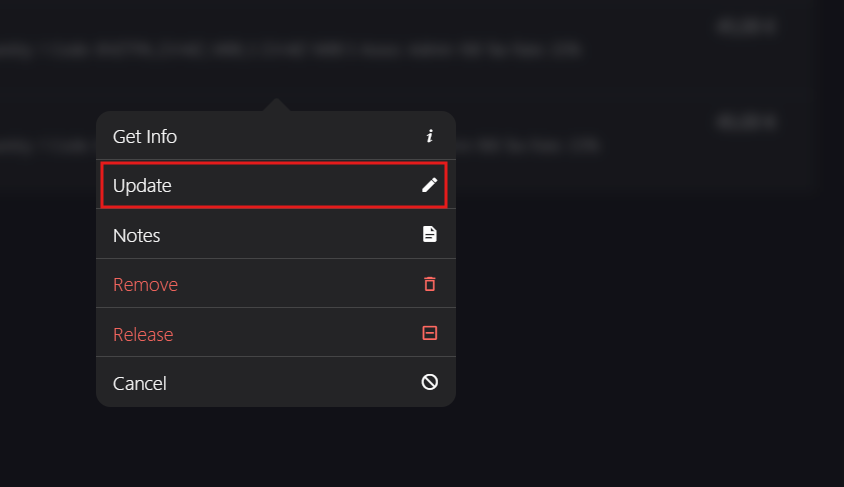
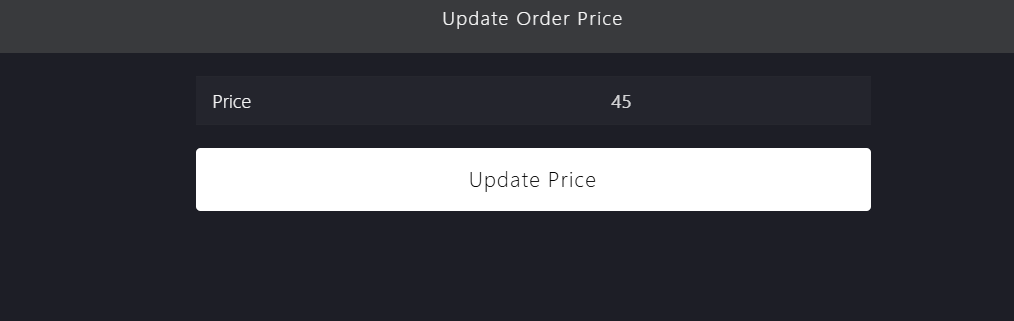
Click Update Price to change the item price.
- Add notes
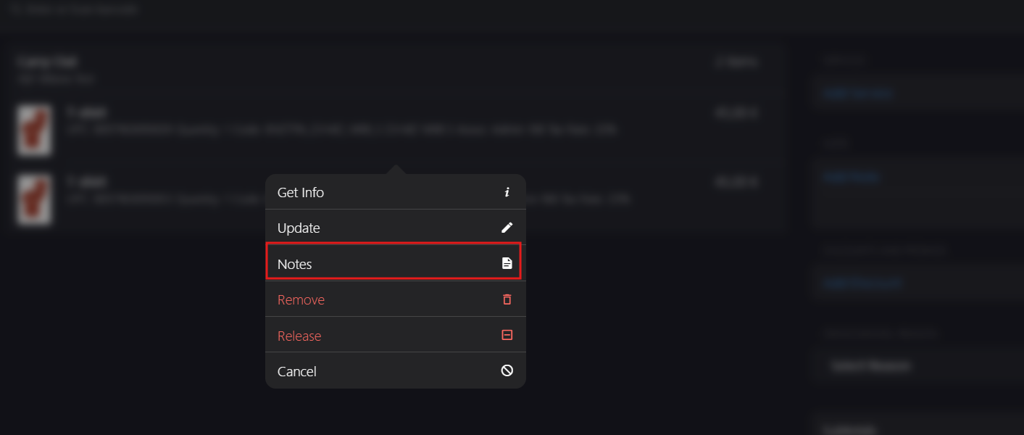
Select Notes from the pop-up menu to add specific customer requests or unique notes related to item delivery.
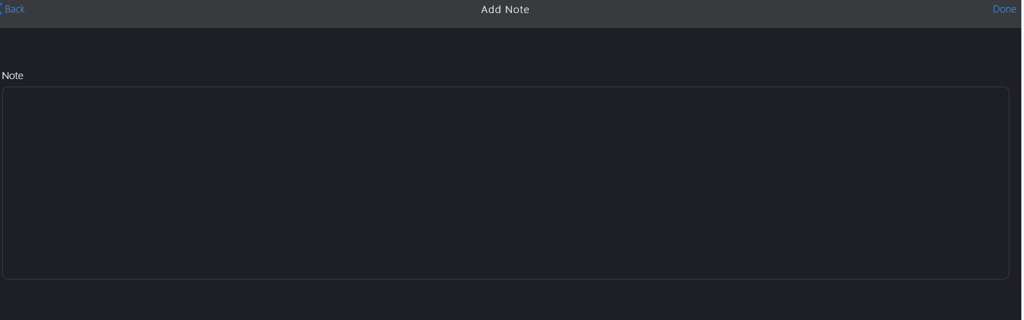
Enter the note in the note field.
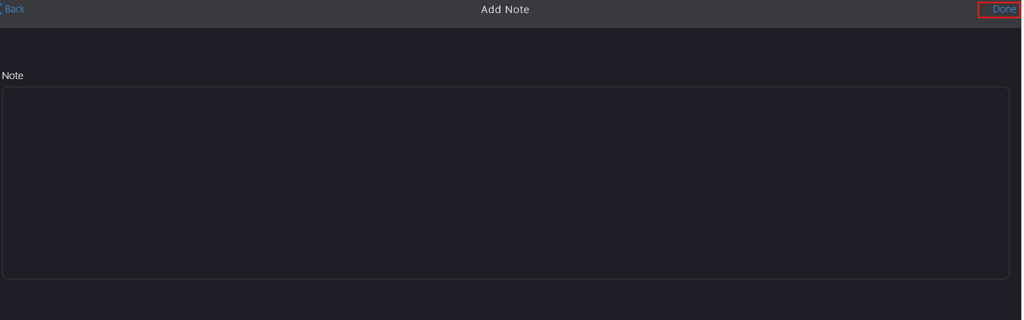
Click Done to add the note.
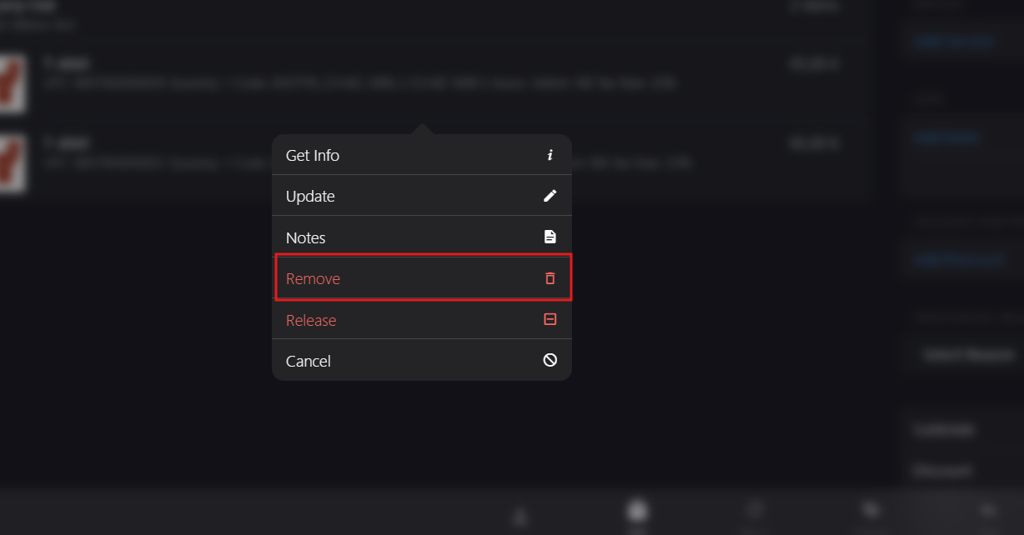
Select Remove from the pop-up menu to remove the item from the sales cart.
-
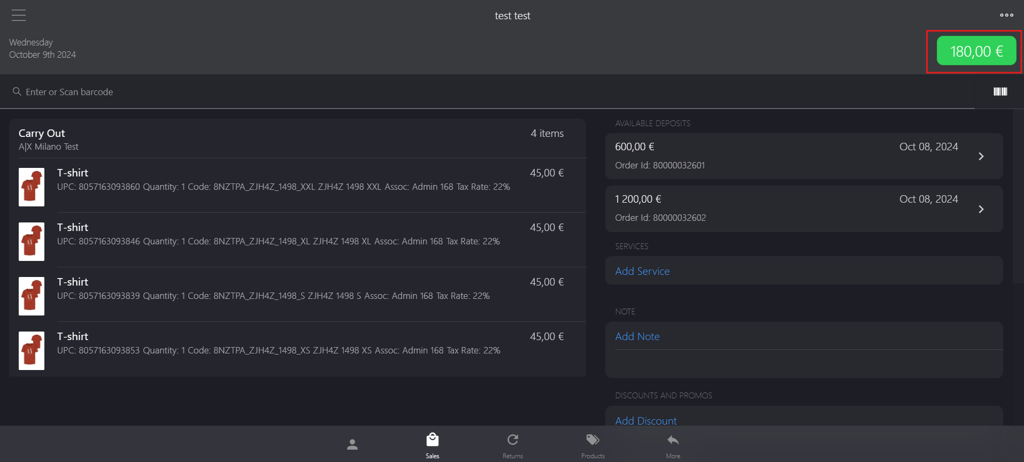
Click the green button in the upper right corner.
-
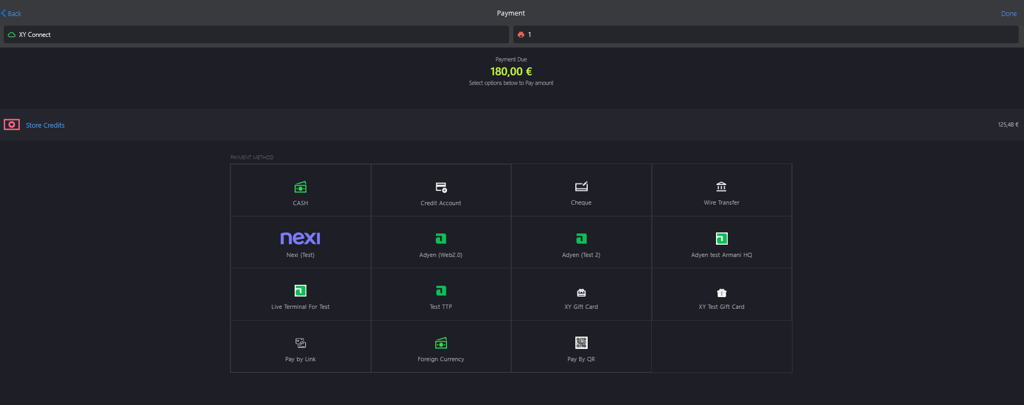
Select the appropriate payment method.
-
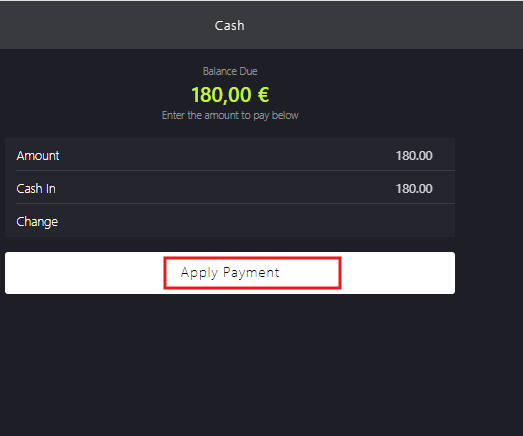
Click Apply Payment to complete the transaction.
-
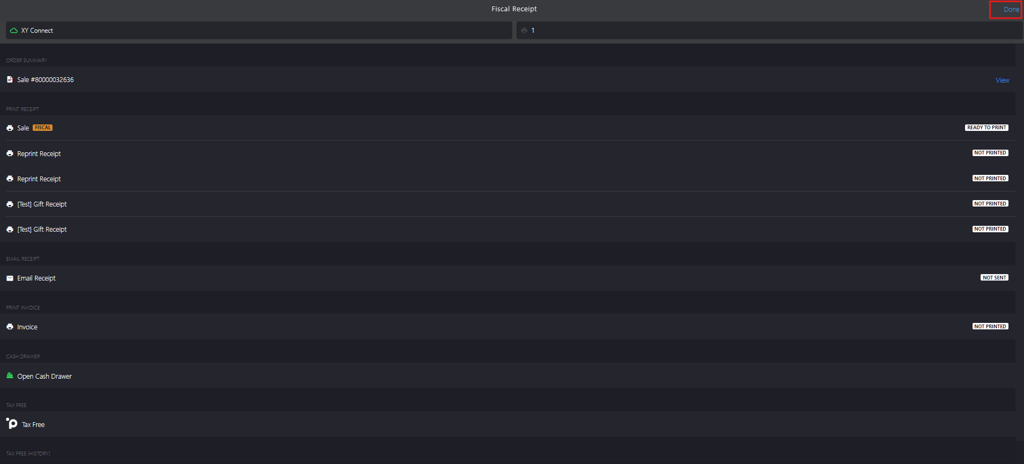
Click Done to complete the sale.