Order Filter
Introduction
Built-in filters enhance the search experience with the drop-down menu filter category. You can tailor and sort the results to meet your precise requirements by selecting and applying specific criteria.
Sorting
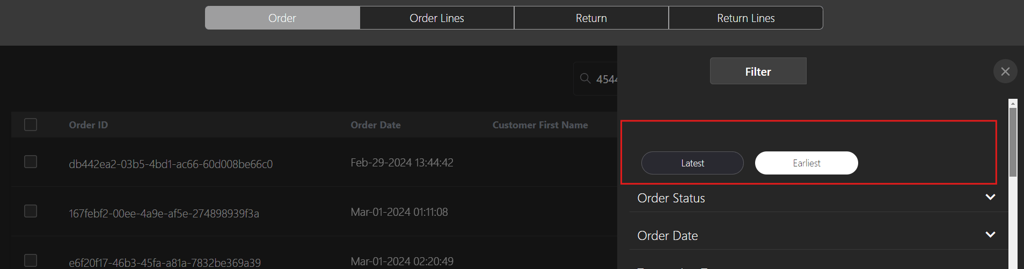
| Sorting Criteria | Description |
|---|---|
| Latest | Select the Latest option to view orders from the most recent date to the oldest. |
| Earliest | Select the Earliest option to view orders from the oldest date to the most recent. |
Filter Options
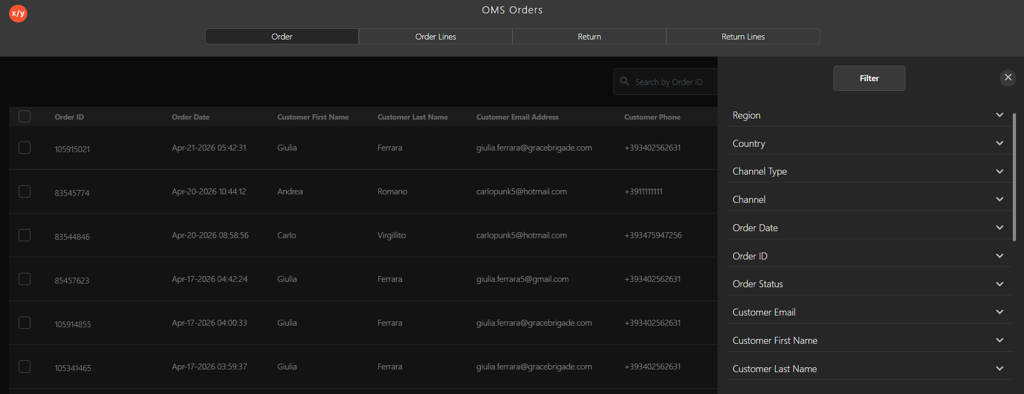
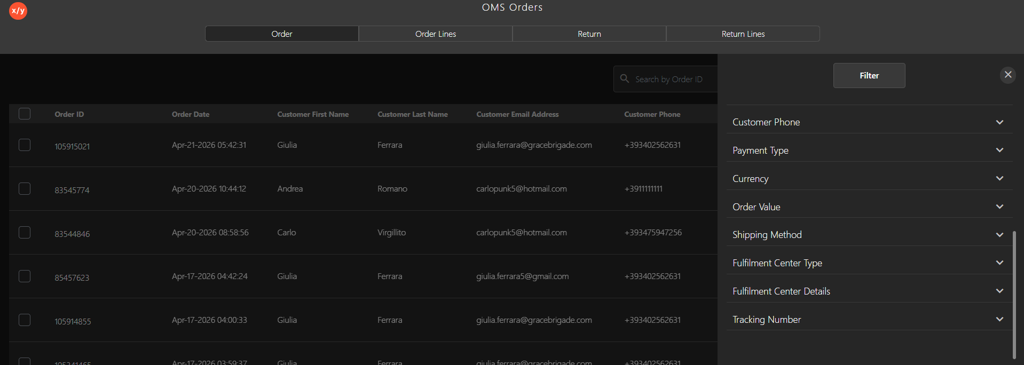
| Filter Category | Description |
|---|---|
| Region | Customize the order list by entering the region name in the Search by Region field or selecting the relevant region checkbox. |
| Country | Customize the order list by entering the country name in the Search By Country field or selecting the relevant country checkbox. |
| Channel Type | Customize the order list by entering the channel type in Search by Channel Type field or selecting the relevant channel type checkbox. |
| Channel | Customize the order list by entering the channel name in Search by Channel field or selecting the relevant channel checkbox. |
| Order Date | Customize the order list by selecting the date range for when the orders were placed. |
| Order ID | Customize the order list by entering the order id in the Search by Order ID field or selecting the relevant order id checkbox. |
| Order Status | Customize the order list by entering the order status in the Search by Order Status field or selecting the relevant status checkbox. |
| Customer Email | Customize the order list for a specific customer by entering the email address in the Enter Customer Email field. |
| Customer First Name | Customize the order list for a specific customer by entering the customer's first name in the Enter Customer First Name field. |
| Customer Last Name | Customize the order list for a specific customer by entering the customer's last name in the Enter Customer Last Name field. |
| Customer Phone | Customize the order list for a specific customer by entering the customer's phone number in the Enter Customer Phone field. |
| Payment Type | Customize the order list by entering the payment type in Search by Payment Type field or selecting the relevant payment gateway checkbox. |
| Currency | Customize the order list by entering the currency in the Search by Currency field or selecting the relevant currency checkbox. |
| Order Value | Customize the order list by selecting the monetary value range for orders to display those within specified ranges. |
| Shipping Method | Customize the order list by entering the shipping method in Search by Shipping Method field or selecting the relevant shipping method checkbox. |
| Fulfilment Center Type | Customize the order list by entering the fulfilment center type in Search by Fulfilment Center Type field or selecting the relevant fulfilment center checkbox. |
| Fulfilment Center Details | Customize the order list by entering the fulfilment center in Search by Fulfilment Center Details field or selecting the relevant fulfilment center checkbox. |
| Tracking Number | Customize the order list by entering the tracking number in the Enter Track Number field. |
Action Buttons
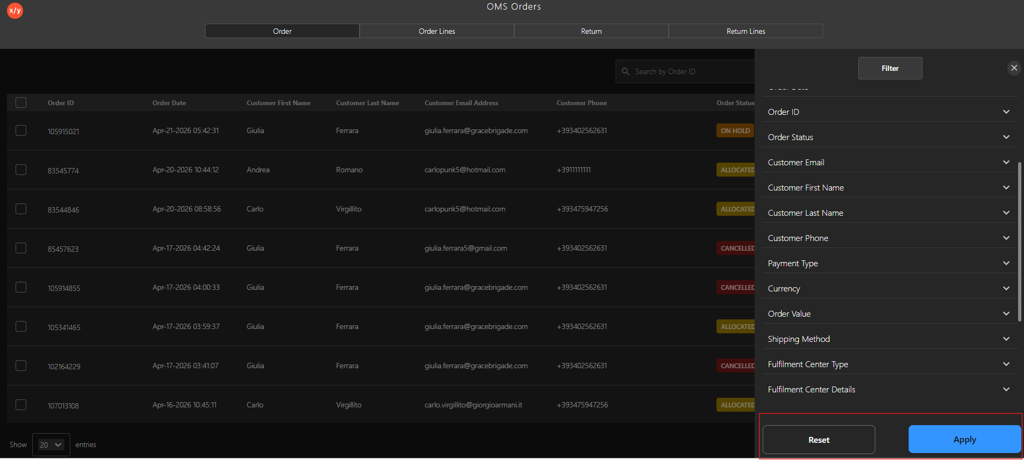
| Action Buttons | Description |
|---|---|
| Apply | Click the Apply button to apply filter criteria and display the customized order list. |
| Reset | Click the Reset button to remove all the applied filters and return to default view. |