Adding a Note to an Order Item
Introduction
This topic explains how to add a note to an order using the Add Note option. Notes help capture additional information or context related to the order.
Steps to add a note to the Order
-
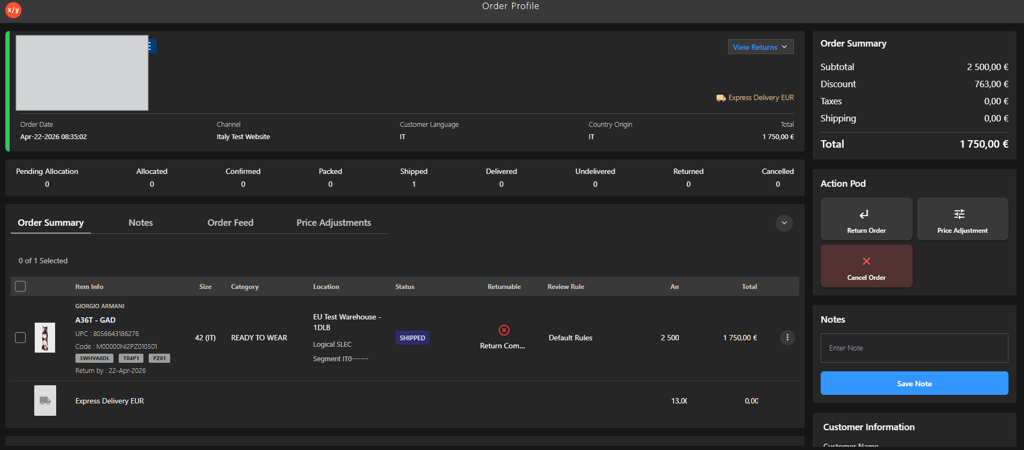
Open the Order Profile.
-
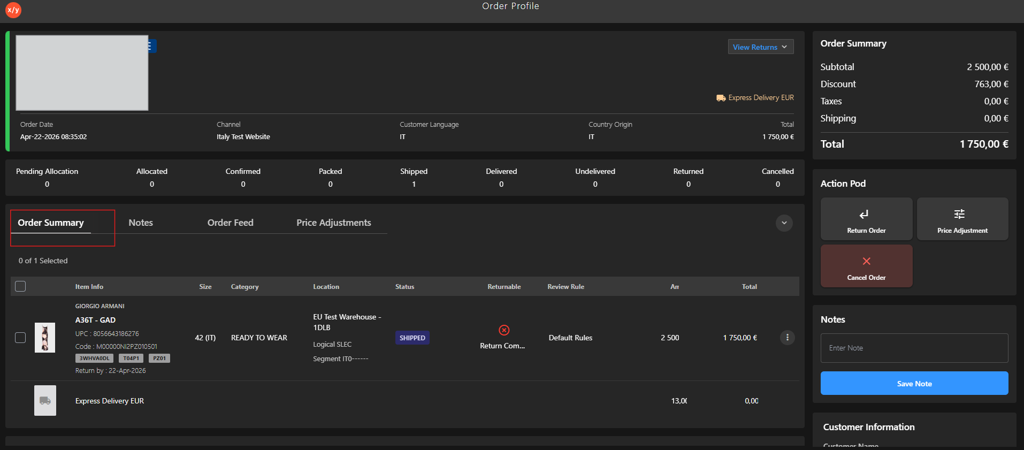
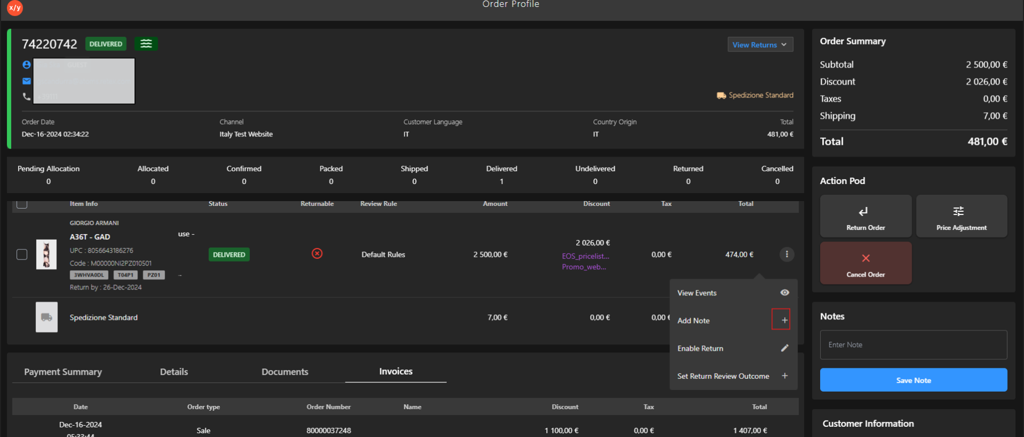
Go to Order Summary.
-
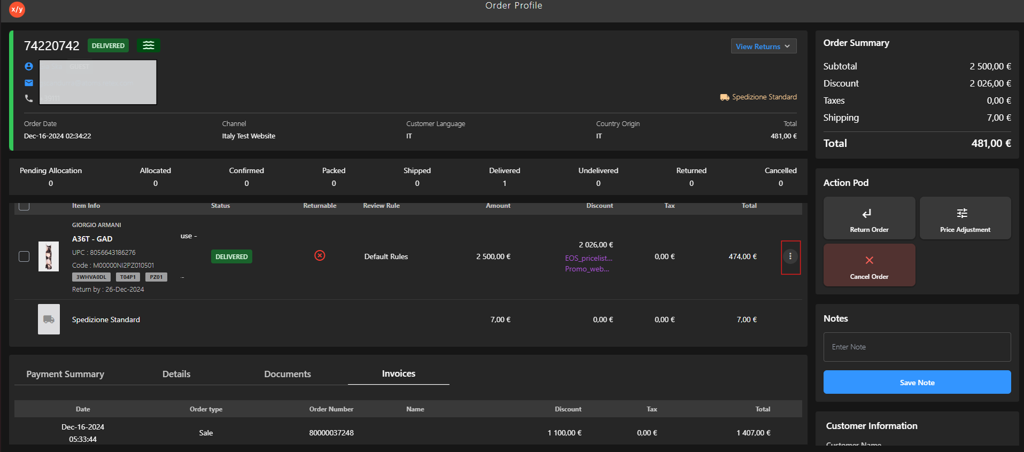
Click the Kebab Menu.
-
Click ADD NOTE
 .
.
-
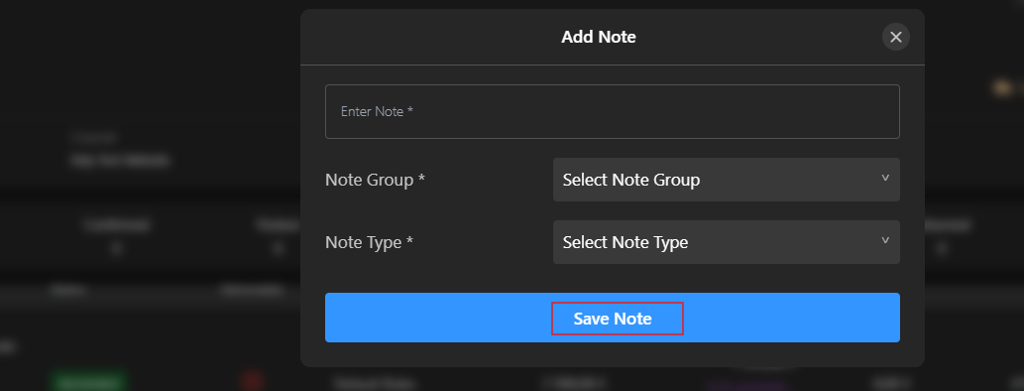
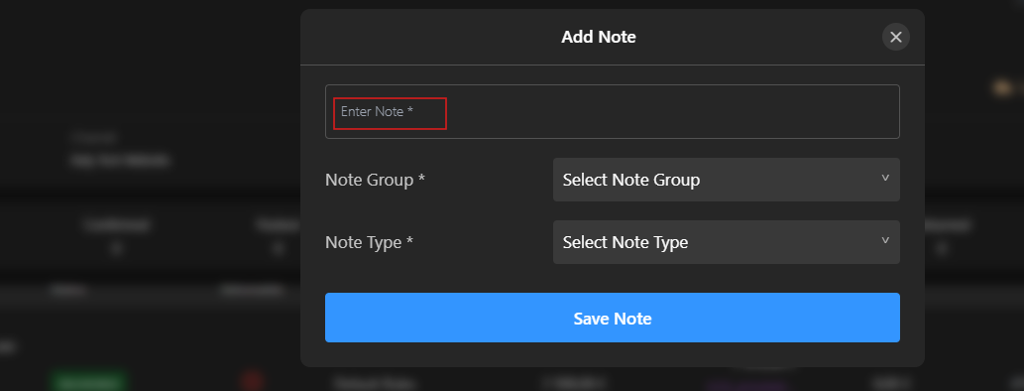
Enter the note in the Enter Note* field.
-
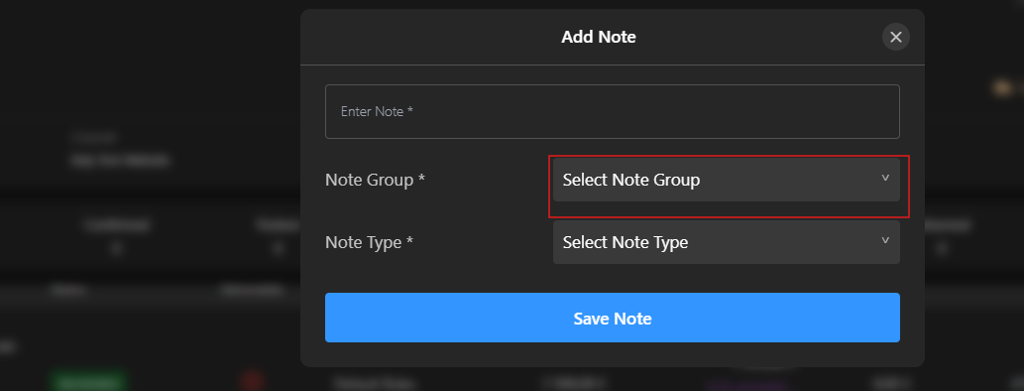
Select a option from Select Note Group dropdown.
-
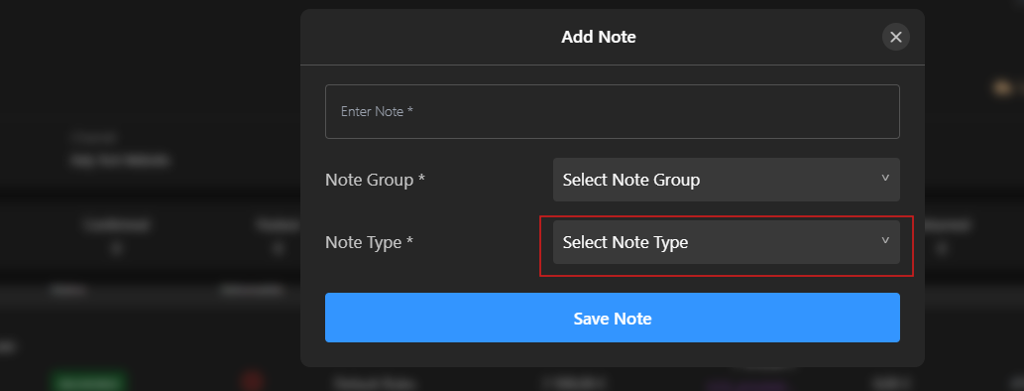
Select a option from Select Note Type dropdown.
-
Click Save Note.